
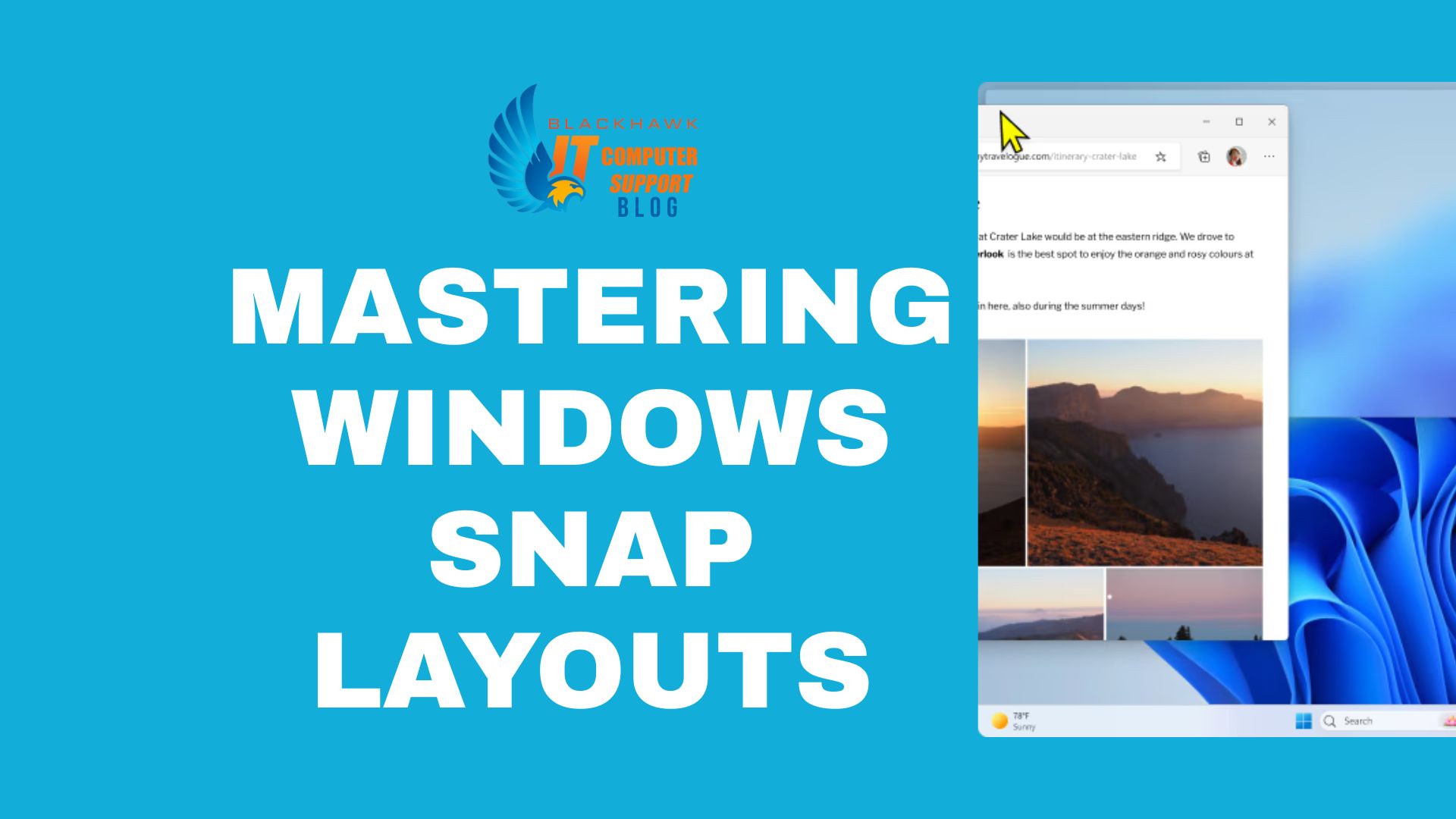

Snap Layouts in Windows 11 provide quick grid-based window arrangement. This guide shows you how to use Snap Layouts to organize windows efficiently for coding, researching, and multitasking across apps. You will learn to snap windows in common grid patterns, manage groups, and recover layouts across sessions. The result is a clean, productive desktop with less time resizing and more focus on tasks.
Introduction
Win кликов: The reader will learn actionable steps to arrange windows quickly, reduce screen clutter, and improve task flow by leveraging Snap Layouts. This guide targets beginners who want reliable window management without hunting through menus.
Prerequisites
- Windows 11 (or later) with Snap Layouts enabled in Settings > System > Multitasking.
- A workspace with at least one monitor; multi-monitor setups benefit from snapping across screens.
- Basic familiarity with keyboard shortcuts for faster navigation.
Step 1: Prepare the first window
Open the first window you intend to snap and ensure it is not maximized. If it is full-screen, use Windows key + Left/Right to snap it to a side first, then you can refine with Snap Layouts.
- Pro-tip: Avoid maximizing the window before selecting a layout; maximized apps cannot be snapped into a grid in the same pass.
Step 2: Reveal the Snap Layouts grid
Hover the mouse over the window's maximize button to reveal the Snap Layouts grid. The grid shows several cells representing possible positions for the window.
- Pro-tip: If the grid does not appear, ensure display scaling is standard (100%) and restart the explorer process if needed.
Step 3: Choose a layout
Select a cell in the grid to snap your window into that position. The chosen layout anchors subsequent windows accordingly.
- Warning: Some apps may resist resizing; if so, try a different layout or snap using a keyboard shortcut.
Step 4: Snap additional windows
Drag another window toward the screen edge until the layout highlights a vacant cell, or press Windows key + Z to view layouts and pick one.
- Pro-tip: Use left/right arrows to switch between layouts while hovering the maximize button; you can combine three or more windows in a grid.
Step 5: Fine-tune and manage
Resize any snapped window by dragging its edge. Adjust the grid by repeating Steps 3–4 on the same monitor or across a second monitor for a larger workspace.
- Use cases: a coding desk with Editor, Terminal, and Browser; research setup with Documents, Notes, and References.
Step 6: Preserve and reuse layouts
Create a Snap Group to keep coordinated windows together when you sign out or switch tasks. Restore the same grid later from the Task View or Start menu.
- Next steps: Learn keyboard shortcuts (Windows key + Z to open Snap layouts; Windows key + Ctrl + Left/Right to move between snapped groups) and experiment with multi-monitor snapping across screens.
Next steps for experimentation and daily use include creating personalized layouts for common workflows, enabling Snap Groups for session persistence, and combining Snap Layouts with taskbar shortcuts to maximize efficiency.