

Introduction
This guide demonstrates a practical workflow for using Windows virtual desktops to organize tasks, separate contexts, and reduce cognitive load. By the end, you will be able to create multiple desktops, assign applications to specific desktops, navigate between them efficiently, and maintain a streamlined, distraction-free workspace.
Prerequisites
Requires Windows 10 or Windows 11 with the virtual desktops feature. Ensure your keyboard and mouse are functioning and that you are comfortable using basic shortcuts (Win + Tab, Win + Ctrl + Left/Right).
Step 1: Create and name a dedicated desktop
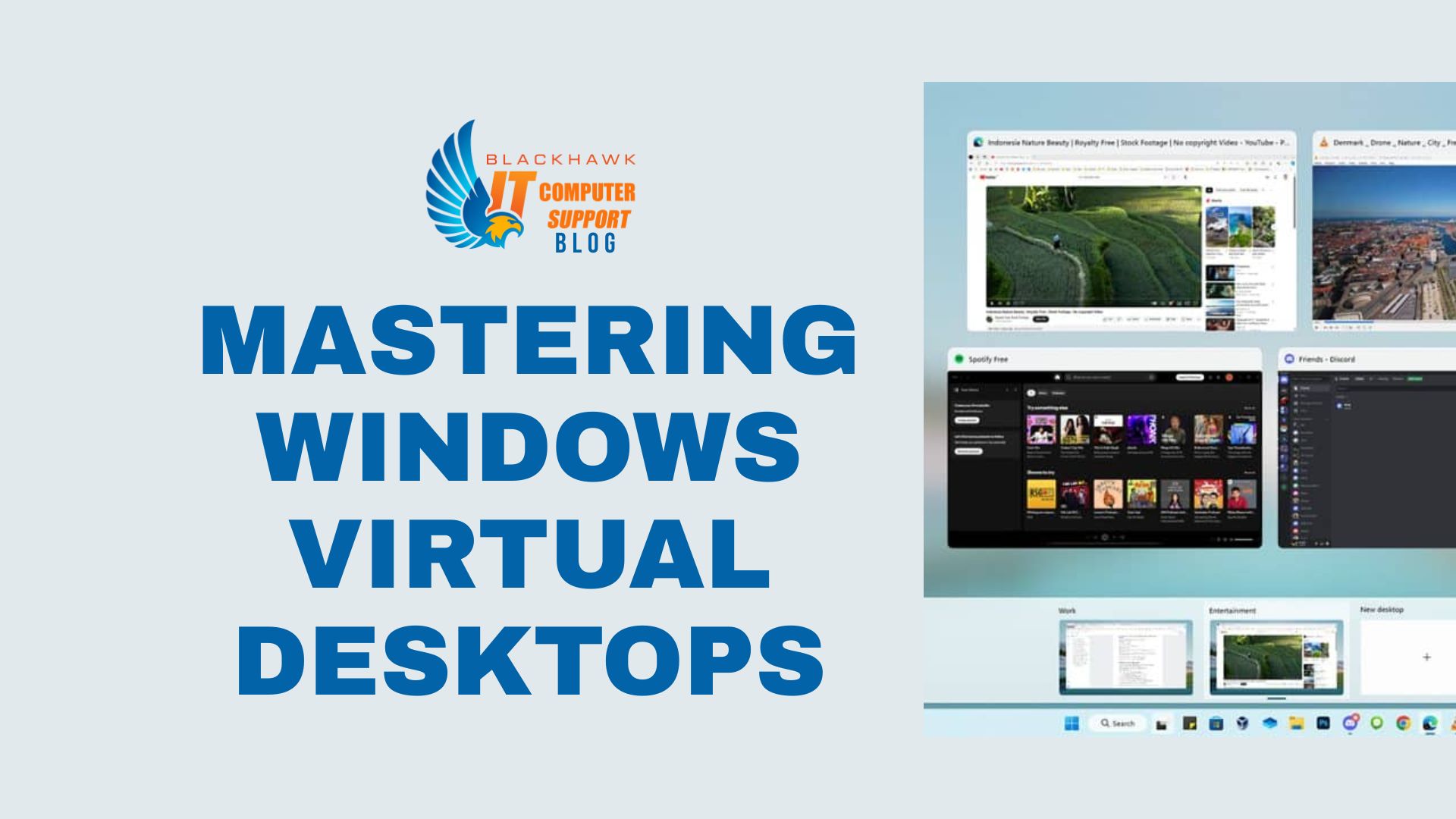
Open Task View with Win + Tab, click New desktop, then rename it to a meaningful label (e.g., "Work", "Research"). This helps you identify the desktop at a glance and supports consistent switching.
Pro-tip
- Keep to 3–4 desktops for clarity; more desktops increase management overhead and reduce speed of navigation.
- Use descriptive names; avoid ambiguous labels like "Desktop 1" if possible.
Step 2: Move windows to your target desktop
In Task View or from a window’s title bar context menu, move the window to the desired desktop. Drag-and-drop is fastest if you have a spacious monitor; keyboard alternative: use Win + Ctrl + Arrow to cycle to the target desktop, then focus the window.
Use case
Example: place your code editor on "Work" while leaving research tabs on "Research" to minimize context switching.
Pro-tip
- Be mindful of app persistence; some apps remember their last desktop but others may reopen on the current one.
Step 3: Switch quickly and maintain focus
Learn shortcuts: Win + Tab shows all desktops; Win + Ctrl + Left/Right switches between them; Alt + Tab remains global. Prefer the Task View when moving between many windows.
Pro-tip
- Practice a routine: switch desktops first, then call up your primary window to reduce interruptions.
Step 4: Attach apps to a specific desktop on startup
Open an application while on the target desktop and consider pinning it; use "Show this window on all desktops" sparingly. If an app launches on the wrong desktop, move it promptly to the intended one.
Warning
- Launching many apps simultaneously can clutter desktops; stagger launches to maintain focus.
Step 5: Review, prune, and plan next steps
Periodically prune unused desktops by returning to Task View and closing the desktop. Map your tasks to 2–4 desktops and set a weekly check-in to adjust as needed. Next steps: experiment with temporary desktops for fleeting tasks and refine your naming scheme over time.