
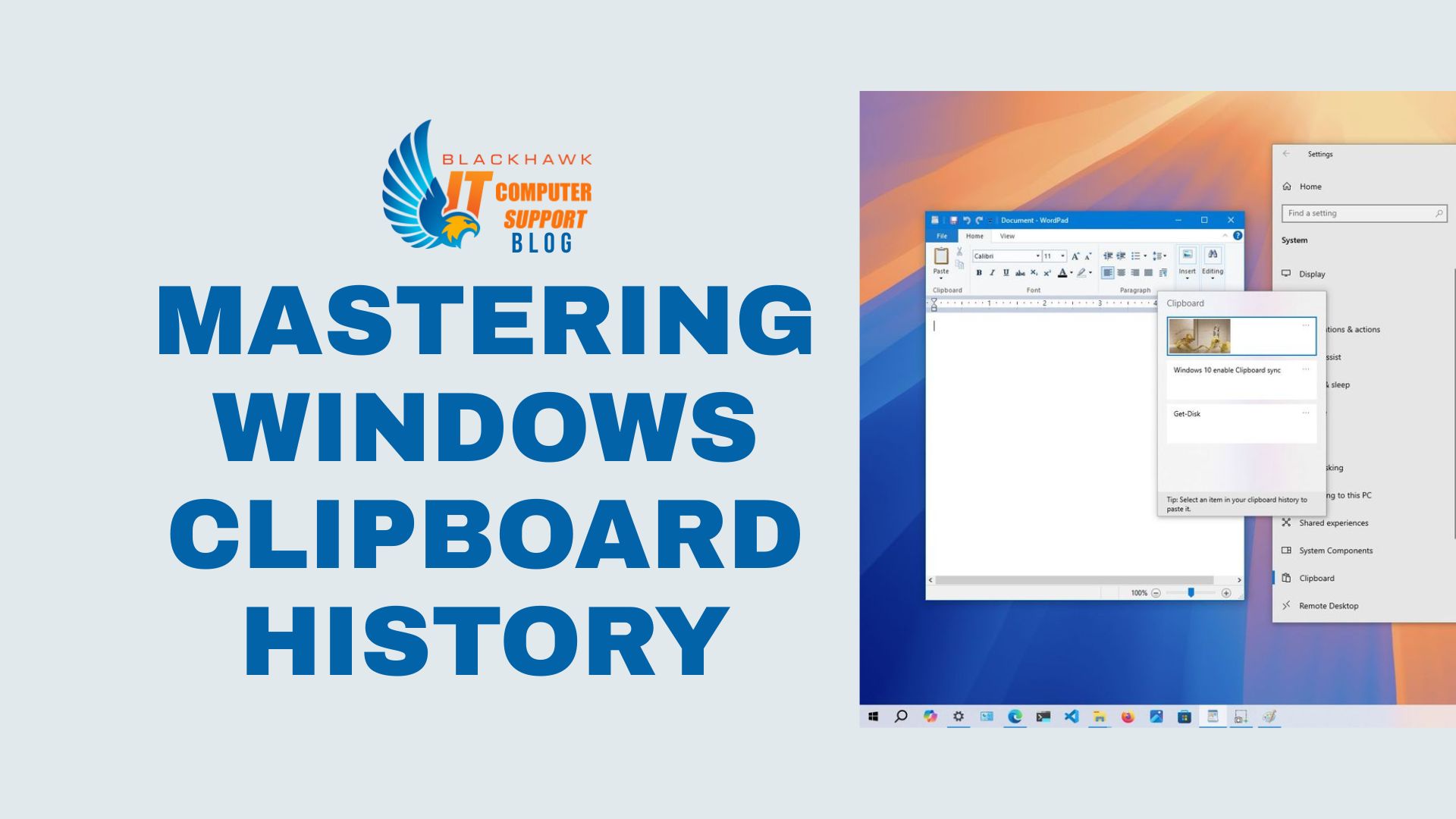

This guide teaches you how to leverage Windows clipboard history to capture, manage, and reuse copied items across applications. By enabling clipboard history and using its features, you reduce data loss, speed up repetitive tasks, and improve accuracy.
Prerequisites
Required: a Windows 10 1809+ or Windows 11 system. Ensure clipboard history is enabled and optionally synced across devices. You should be signed in with a Microsoft account if you want cross-device history. Be aware that some applications or enterprise policies may restrict clipboard features.
Step 1: Enable Clipboard History
Open Settings and enable the feature. Go to Settings, System, Clipboard, and turn on Clipboard history. Verify the toggle by pressing Win+V to confirm a history list appears.
- Pro-tip: Enable Sync across devices if you want history to travel between PCs, but consider privacy implications.
- Warning: Some sensitive fields (like passwords) might still be restricted from history; treat clipboard data as potentially visible to other apps.
Step 2: Use the Clipboard History UI
Invoke the history panel with Win+V and choose an item to paste. The panel lists recent items with icons showing text, image, or file types; selecting an item pastes it at the cursor.
- Pro-tip: Use the arrow keys for navigation if you prefer keyboard-only operation.
- Mistake to avoid: Do not assume the top item is the most relevant; recent items refactor as you copy new content.
Step 3: Pin and manage items
Pin important items to keep them in the clipboard history and prevent them from being overwritten by new copies.
- Pro-tip: Pin frequently reused phrases or customer IDs for quick paste.
- Warning: Pinned items take space; periodically prune unused pins to keep the history relevant.
Step 4: Clear history and privacy considerations
Clear all history when needed from Settings to protect privacy. In the Clipboard settings, choose Clear clipboard data and confirm.
- Tip: For sensitive work, consider clearing history at the end of the day.
- Note: Clearing history does not affect pinned items.
Step 5: Practical tips and next steps
Experiment with enabling shortcut combos, refining what you copy, and using pinned items to speed routine tasks. If you frequently copy formatting, use plain text pasting by first pasting into a plain-text intermediary app, then into the target field.
- Next steps: Review privacy settings, enable cross-device history if appropriate, and explore automation tools (e.g., macros) to trigger common pastes.