
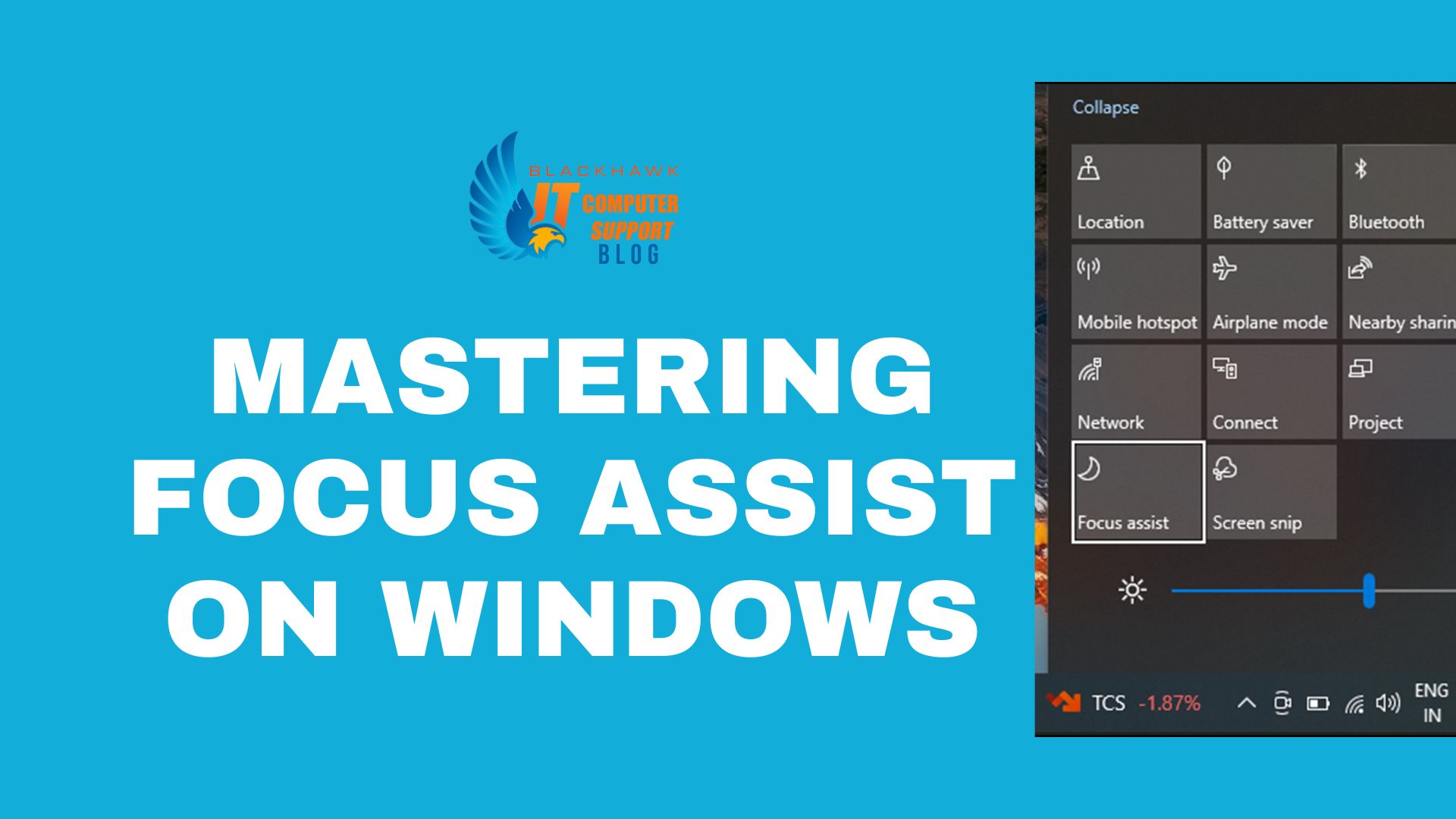

This guide shows how to configure Focus Assist on Windows to minimize interruptions during work, study, or presentations. By mastering mode selection, automation, and quick toggling, you’ll reclaim focus, reduce context switching, and deliver clearer communications when you need it most.
Prerequisites
Ensure you are using Windows 10 or Windows 11, with the latest updates. You should have a standard account or administrator rights to change Focus Assist settings. Note that in some enterprise environments this feature may be disabled by policy.
Step 1: Open Focus Assist settings
Open Start, then Settings, System, and Focus Assist. In Windows 11 this path is Settings > System > Focus Assist; in Windows 10 the route is similar. Confirm you can access Focus Assist and that it is not locked by policy.
- Use Windows shortcut Windows + A to open Quick Settings and toggle Focus Assist quickly.
- Open Action Center and click Focus Assist if available.
Tips
- Review current rules before enabling to avoid surprises.
- If Focus Assist doesn’t appear, check for pending updates or policy restrictions.
Step 2: Choose a Focus Mode
In Focus Assist settings, select a mode: Off, Priority only, or Alarms only. Priority mode allows notifications from your allowed list and apps; Alarms only suppresses everything except alarms.
- Test each mode briefly to observe banner behavior and audible cues.
Pro tip
- Add essential apps or contacts to the Priority list to avoid missing important alerts.
Step 3: Create Automatic Rules
Set rules for automatic activation during certain times, when you’re presenting, or when you’re in full-screen apps. This reduces manual toggling and ensures focus when needed.
- Time-based rules align with daily routines; pair with calendar entries for consistency.
Common pitfall
- Avoid overlapping rules that conflict; periodically prune unused conditions.
Step 4: Manage Notifications and Overrides
Customize which notifications bypass Focus Assist. You can allow calls or messages from favorites or specific apps, balancing focus with critical alerts.
- Set a brief quiet period during presentations.
Step 5: Quick Actions and Refinement
Use Quick Settings to toggle Focus Assist on the fly and adjust rules as you gain experience. Monitor banners to confirm behavior.
- Maintain a short test routine to verify rules after software updates.
Step 6: Test, Troubleshoot, and Next Steps
Run quick tests in different scenarios: work, presentations, and gaming. If something misbehaves, revisit your rules, check device policy, and verify per-app interruption settings.
- Next steps: fine-tune the allowed list, explore calendar-based automation, and schedule reviews every few weeks to adapt to changing routines.