
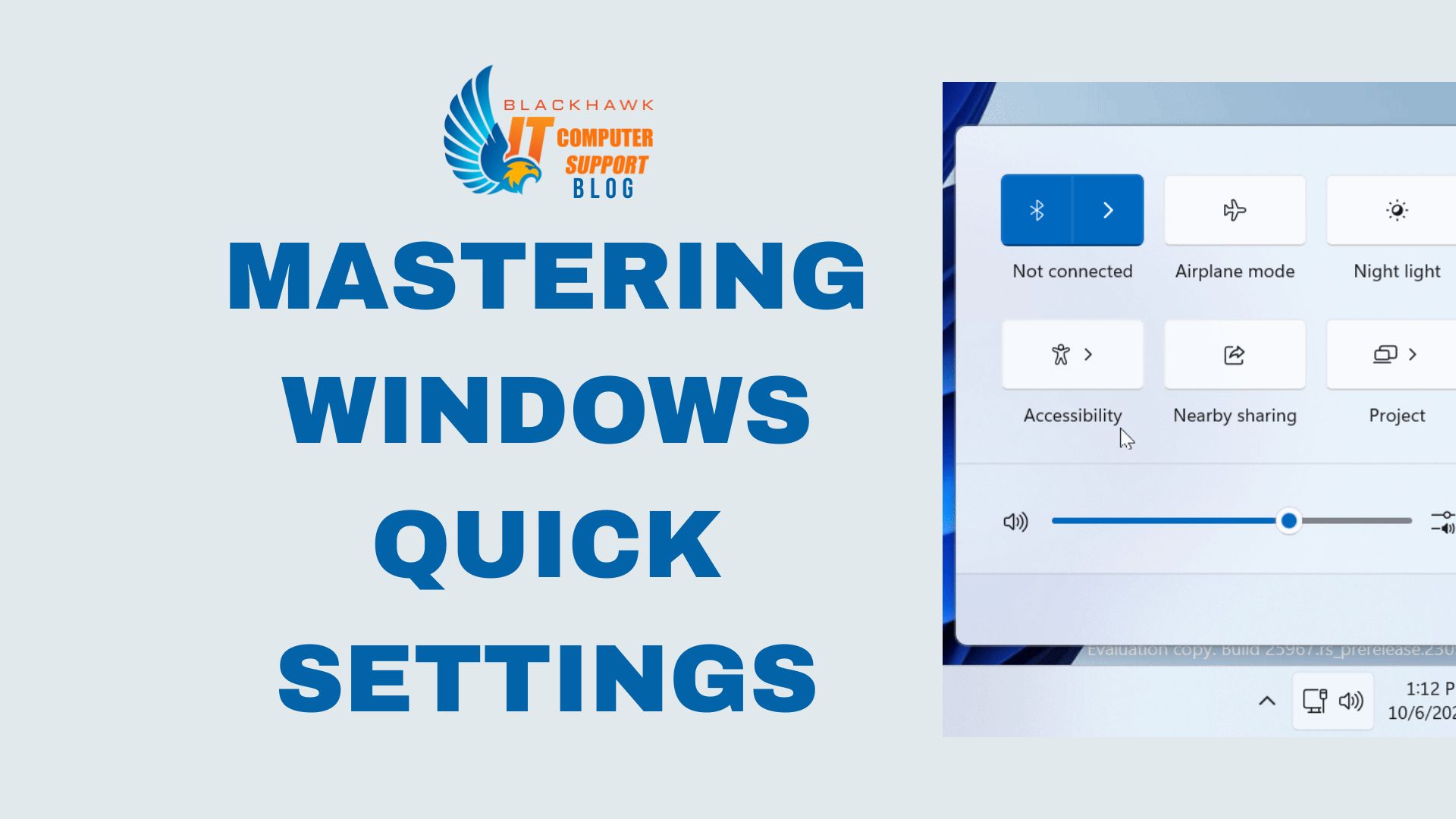

This guide explains how to access and optimize Windows Quick Settings to save time and streamline daily tasks.
Introduction
Learn how to quickly toggle essential controls, customize the panel, and integrate Quick Settings into your daily workflow. Mastery saves clicks, reduces context switching, and improves focus by letting you adjust connectivity, audio, focus modes, and display preferences on the fly.
Prerequisites
Supported on Windows 10 and Windows 11. Ensure you know your single-letter shortcuts and that the taskbar is not hidden by a secondary monitor setup. Have a working keyboard for speed and a mouse or touch if you prefer precision.
Step 1: Open Quick Settings
Open Quick Settings by pressing Win + A or by clicking the network/volume/battery cluster at the far right of the taskbar. Pro tip: Win + A is faster when your hands are on the keyboard. Warning: avoid opening it while presenting to prevent accidental toggling of notifications.
- Pro tip: memorize the keyboard shortcut for rapid access.
- Common pitfall: clicking the wrong area on high DPI displays can trigger the notification panel instead.
Step 2: Customize Quick Settings
Expand the panel and choose Edit quick settings to tailor which tiles appear and in what order. Drag icons to reorder, add missing toggles, and remove unnecessary ones. Pro tip: position frequently used toggles near the top for faster access. Warning: changing the layout may affect visibility on small screens.
- Pro tip: place essential toggles (Wi‑Fi, Focus Assist, Night Light) at the top.
- Common mistake: assuming the order persists across all apps; it does persist across reboots in a single user profile.
Step 3: Use Quick Settings in daily tasks
Use toggles to accelerate common tasks: turn on Airplane mode during travel, enable Night Light for late viewing, or activate Focus Assist during focused work. Example workflow: quickly silence notifications during a meeting, then restore them after.
- Pro tip: combine with Focus Assist to minimize interruptions without muting important alerts from trusted apps.
- Warning: Night Light reduces blue light but can slightly warm the screen; adjust to taste.
Step 4: Access deeper settings
From Quick Settings, select Open settings to launch the main Windows Settings app for more granular control (sound devices, notifications, power settings). Pro tip: use the search box in Settings to locate a feature quickly. Warning: avoid changing system-wide defaults unless you understand the impact.
- Pro tip: use keyboard search to navigate without leaving the current task.
- Common mistake: assuming Quick Settings exposes every option; some controls live in the full Settings app.
Step 5: Next steps
Practice regularly to internalize the layout, tailor Quick Settings to your work style, and integrate it into your routine. Next steps: review your toggles weekly, experiment with a dedicated focus scenario, and bookmark the Settings search for quick access.