
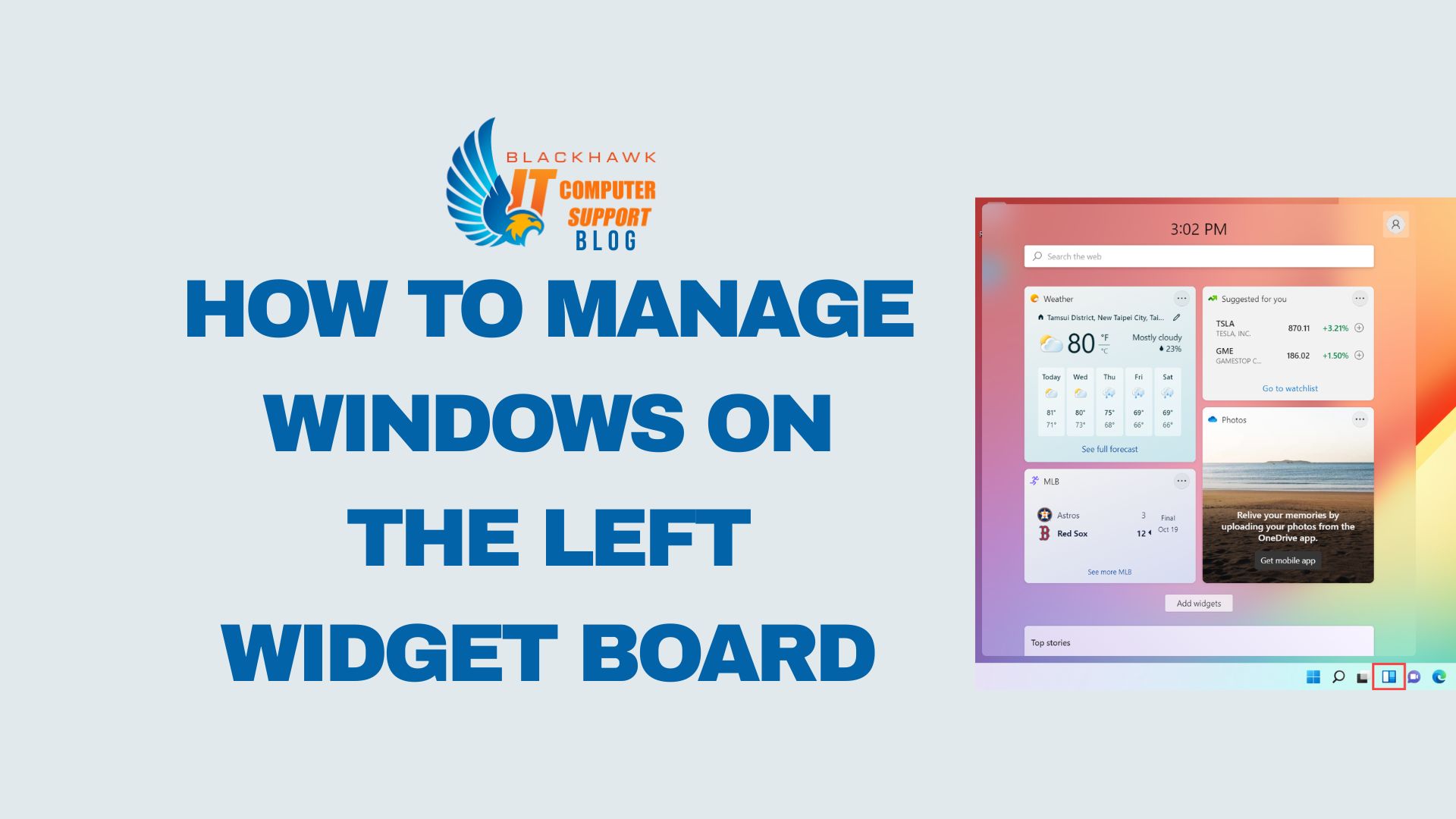

This guide shows you how to manage and optimize windows on the left widget board of a desktop setup. You will learn how to arrange, resize, and preserve your preferred window layout to improve focus and workflow efficiency.
Prerequisites
- A compatible OS and window manager with a left widget board feature.
- Access to widget board customization settings and, ideally, a saved layout capability.
- Basic keyboard/mouse proficiency and a stable monitor configuration.
Step 1: Assess the current layout
Begin by evaluating what windows currently inhabit the left widget board and which ones are essential to your workflow.
- Capture a quick screenshot of the left board to reference later.
- List each widget’s purpose and priority to determine what should stay, resize, or move.
- Note any overlap or wasted space that hurts readability or task flow.
Tip: Use a simple grid outline (for example, 3 columns) to judge proportional space before resizing.
Warning: Don’t overpopulate the board. Too many widgets degrade performance and slow your navigation.
Step 2: Define window rules and tiling
Set explicit rules for how windows behave when you resize or switch tasks.
- Choose a consistent width for left-board widgets (e.g., 320–360 px) to maintain alignment.
- Enable snapping with a moderate threshold so windows don’t drift during typing.
- Decide whether widgets should be movable, pinned, or auto-hidden when they’re not in use.
Pro tip: Create a short template layout for common scenarios (e.g., monitoring + chat, or docs + references).
Common mistake: Mixing fixed and fluid widths without regard to the primary task order.
Step 3: Arrange windows for common use cases
Apply the template to real tasks and adjust based on feedback from your hands-on testing.
- Use a dedicated left-board layout for high-priority apps and a secondary layout for reference materials.
- Save each configuration as a named layout to switch quickly between workflows.
- Test across different times of day to ensure readability and ease of use when lighting changes.
Example: For software development, place the code editor on the left, a terminal or build monitor below, and a chat/status widget on top.
Step 4: Test, iterate, and guard against clutter
Iterate the setup with real tasks and refine rules to reduce friction.
- Regularly review which widgets are truly active; remove or hide unused ones.
- Watch for performance lag when the left board runs many responsive widgets.
- Document changes and adjust your saved layouts as your work evolves.
Next steps: Automate layout switching based on activity (e.g., time of day, project, or app focus) and revisit the board weekly to prune clutter.