

Shake to Minimize offers a rapid way to declutter your screen by minimizing all nonessential windows when you shake a window's title bar. This guide shows you how to use it, verify it's enabled, and troubleshoot common issues—so you can regain focus quickly.
Introduction
In Windows, dragging a window's title bar and giving it a sharp shake minimizes all other open windows. This feature helps you quickly inspect the desktop, switch tasks, or present a clean workspace. It matters because it reduces mouse clicks and cognitive load during focused work or demonstrations.
Prerequisites
What you need to know or have before you start: a Windows PC (Windows 7 through 11), a mouse or trackpad, and a window you want to keep in view. Ensure you can visually distinguish the title bar and that you can drag windows by it. Warning: accidental shakes can hide work you haven't saved yet; save frequently when learning this gesture.
Step 1: Prepare the target window
Identify the window you want to stay in focus and position it on top. Pro tip: select a window that contains content you frequently reference. Common mistake: dragging the wrong window and hiding your current work.
Details
Make sure the window is not minimized and that its title bar is visible so you can grip it with the cursor.
Step 2: Perform the shake gesture
Grab the target window by its title bar and move the mouse in a quick, horizontal shake. If done properly, all other windows minimize with a brief animation, leaving your chosen window in front. Tip: keep the motion brisk; overly slow shakes may not register.
Pro tips
- Maintain a loose wrist to reduce fatigue during repeated shakes.
- Practice a 1–2 second shutter-like motion for consistency.
Step 3: Observe the result
Confirm that all non-target windows have minimized and that the target window remains accessible. If some windows resist, check for full-screen apps or utilities that override focus.
Step 4: Verify or enable the feature
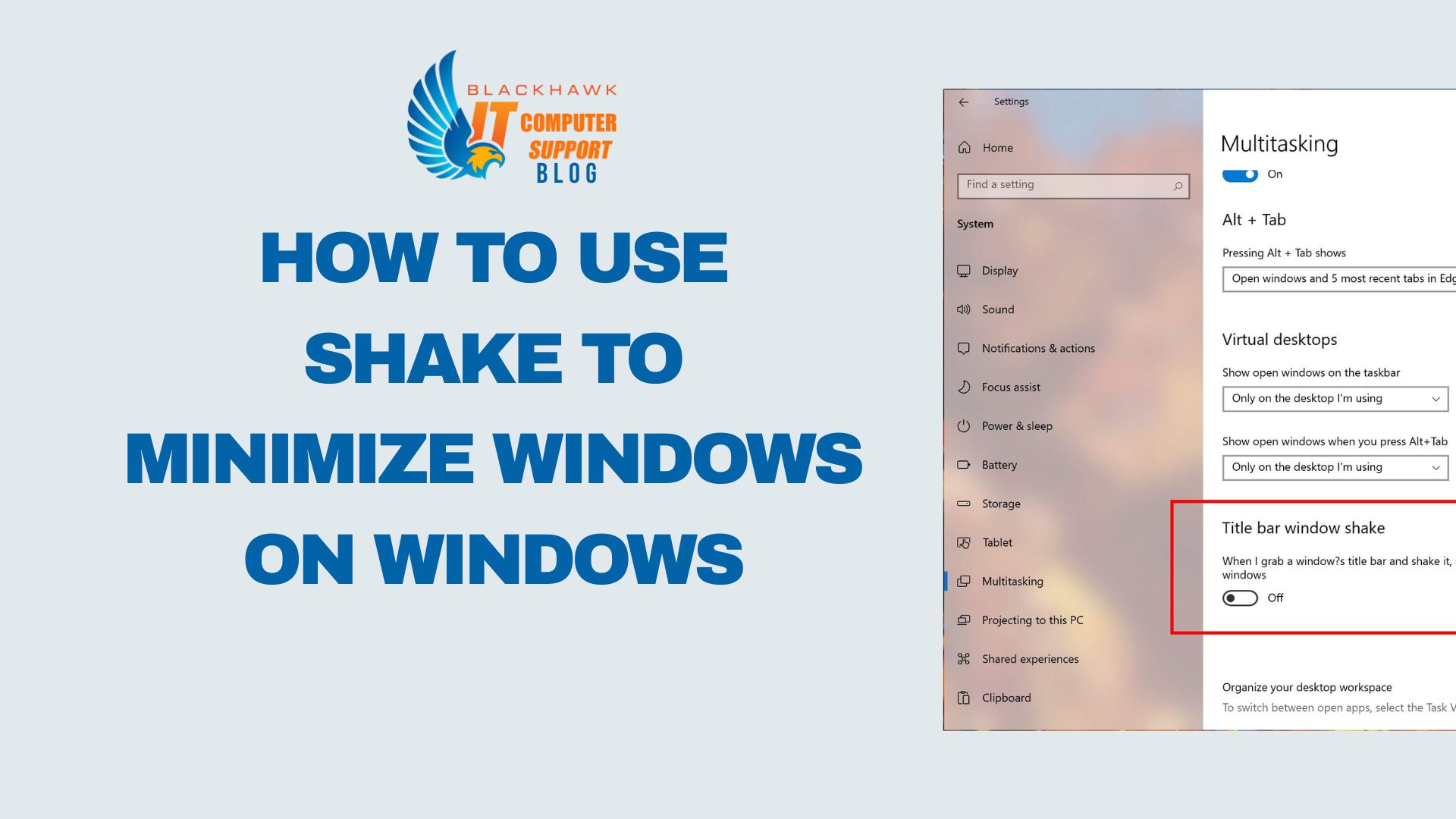
If the gesture doesn't work, verify the feature is enabled in settings: look for Shake to minimize windows (Settings > System > Multitasking or search for the feature). Some editions or policies may disable it; if so, you can still minimize windows manually from the taskbar.
Step 5: Tips, use cases, and cautions
Use cases include quick demos, practicing focus during work, or preparing a clean screen for screen sharing. Cautions: accidental shakes can hide work; practice on non-critical windows first. Bonus tips: pair with Alt+Tab for fast task switching after the shake.
- On single or multiple monitors, the gesture is most reliable when windows aren't maximized irregularly.
- If you frequently need visibility of all windows, consider a quick keyboard shortcut as a fallback.
Next steps: Practice the gesture across a few different apps to build muscle memory. If you're on a managed device, check with IT about any policy constraints that could disable Aero Shake.