

What Are Virtual Desktops in Windows 11?
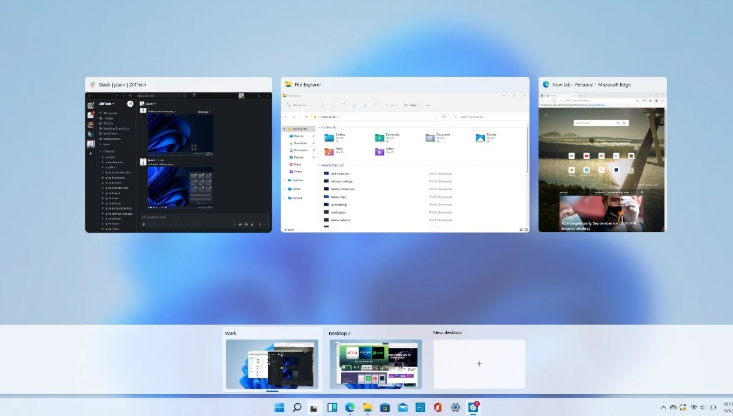
Virtual desktops are like having multiple monitors on one screen. Each desktop can hold its own set of open apps and windows, keeping your workflow separated and focused. For example: on
- Desktop 1: Work emails and documents
- Desktop 2: Web browsing and research
- Desktop 3: Personal streaming and chats
This feature, refined since Windows 10, got visual upgrades in Windows 11, including per-desktop custom backgrounds and better Task View integration.
How to Access Virtual Desktops (Task View)
The gateway to managing virtual desktops is Task View:
- Click the Task View icon on the taskbar (it looks like two overlapping rectangles).
- Or use the keyboard shortcut: Windows key + Tab.
Task View shows thumbnails of all your open windows and virtual desktops at the top.
Pro Tip: Customize taskbar behavior in Settings > System > Multitasking > Desktops to show windows "Only on the desktop I'm using" (recommended for focus) or "On all desktops."
How to Create a New Virtual Desktop in Windows 11
Creating new desktops is instant:
- In Task View (Win + Tab), click New desktop (the + icon) at the top.
- Quick shortcut: Windows key + Ctrl + D — instantly creates a new desktop and switches to it.
You can create as many as you need—most users stick to 3–8 for optimal performance.
How to Switch Between Virtual Desktops
Switching is seamless:
- Use Windows key + Ctrl + Left Arrow or Right Arrow to cycle left/right.
- In Task View, click the desired desktop thumbnail.
- Hover over the Task View icon on the taskbar for a quick preview and switch.
These shortcuts make navigation lightning-fast once you're used to them.
How to Rename and Customize Virtual Desktops
Personalize for easy recognition:
- Open Task View (Win + Tab).
- Click the name of a desktop (e.g., "Desktop 1") and type a new one—like "Work," "Personal," or "Gaming."
- Right-click a desktop thumbnail > Choose background to set a unique wallpaper (perfect for visual distinction).
Custom backgrounds and names help you instantly know which workspace you're entering.
How to Move Apps and Windows Between Desktops
Organize on the fly:
- Open Task View (Win + Tab).
- Drag an open window from one desktop thumbnail to another.
- Or right-click a window in Task View > Move to > select the target desktop.
Advanced Shortcut: While focused on a window, use Ctrl + Win + Shift + Arrow (left/right) to move it to the adjacent desktop without leaving your current view.
How to Close a Virtual Desktop
When you're done:
- In Task View, hover over a desktop thumbnail and click the X in the corner.
- Quick shortcut: Windows key + Ctrl + F4 (closes the current desktop).
Closing a desktop moves all open windows to the previous one—no data is lost!
Essential Keyboard Shortcuts for Virtual Desktops in Windows 11
Master these for power-user efficiency:
- Win + Tab — Open Task View
- Win + Ctrl + D — Create new desktop
- Win + Ctrl + Left/Right Arrow — Switch desktops
- Win + Ctrl + F4 — Close current desktop
- Alt + Tab — Switch apps (stays within current desktop by default)
Best Practices and Productivity Tips for 2026
Here are pro strategies to get the most out of managing virtual desktops in Windows 11:
- Dedicated Workspaces — One for email/browser, one for creative tools, one for meetings.
- Visual Cues — Use distinct wallpapers (e.g., calm blue for work, vibrant for fun).
- App Separation — Browsers like Chrome treat each desktop as a "separate instance" for isolated tabs.
- Combine with Snap Layouts — Windows 11's snap groups operate independently on each desktop.
- Third-Party Boost — For more features (such as direct-jump shortcuts to specific desktops), consider tools like PowerToys or community extensions.
Many users report saving 20–30 minutes daily by reducing window-hunting.
Common Issues and Troubleshooting
Apps not showing?
Check Multitasking settings—set to show windows only on the current desktop.
Performance lag? Limit to 5–10 desktops on lower-end hardware. After a restart?
Windows doesn't save layouts natively, but apps often reopen in place.
Conclusion: Level Up Your Multitasking Today
Managing virtual desktops in Windows 11 is one of the OS's most underrated features for staying organized and productive in 2026. Start simple—create 2–3 desktops, assign shortcuts, and build from there.
Try it now: Press Win + Tab and add your first new desktop!
Have questions or tips of your own for Windows 11 virtual desktops? Contact us today.