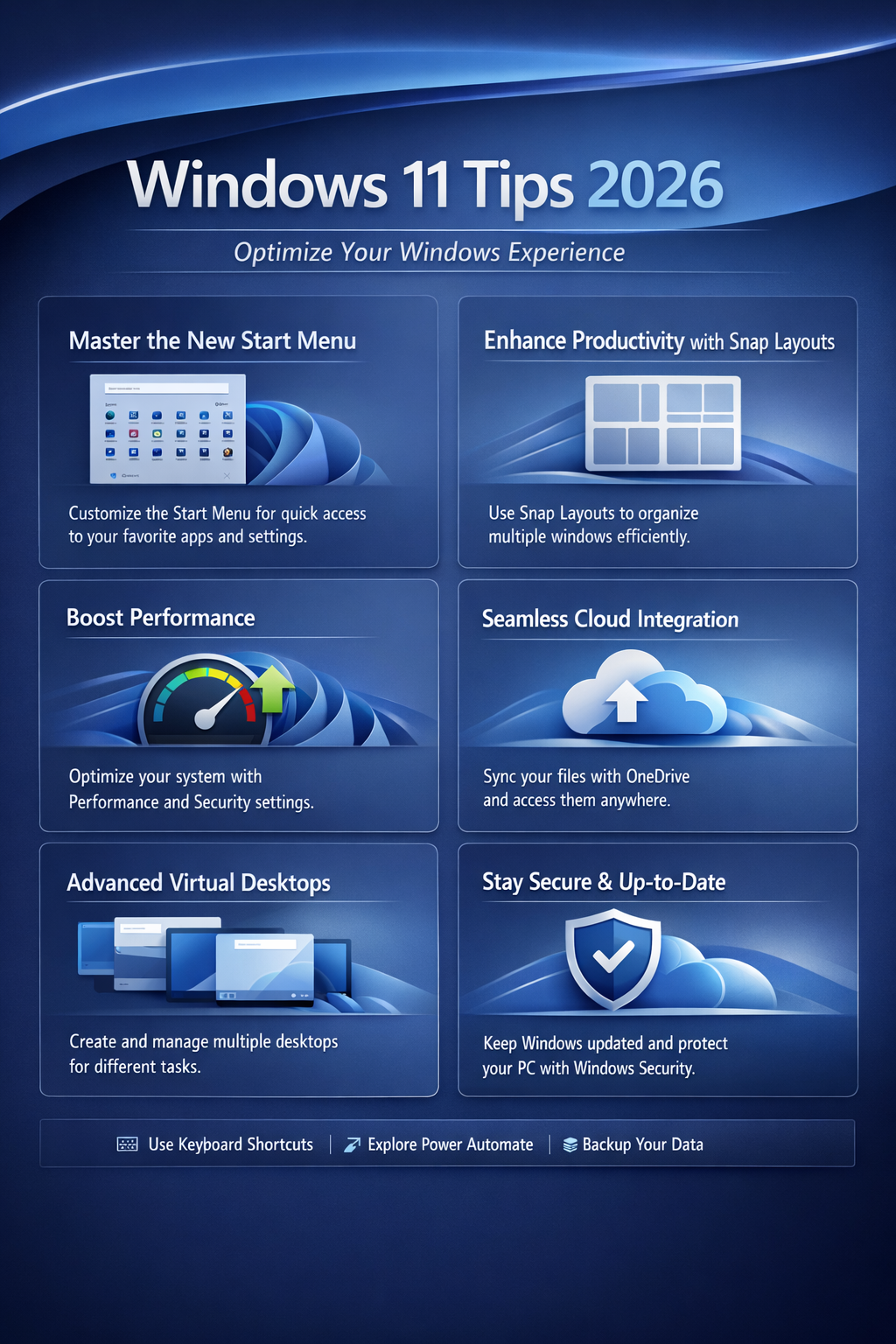
 Windows
 Tips and Tricks:
Imagine gliding through your day on Windows with less clicking, fewer back-and-forths, and more time for what matters. This beginner-friendly guide brings you 10 essential Windows tips and tricks for everyday productivity in 2025. Each tip is crafted for home users and small businesses in the SF Bay Area, from Danville to San Ramon, who want practical, reliable tweaks that save minutes daily. We’ll reference the notable December 2025 Windows updates that strengthened dark mode, improved search, and introduced Copilot+ hints, making common tasks smoother across the system. Whether you’re juggling a home office, a client call, or a quick sprint to finish taxes, these steps will feel intuitive, not intimidating. Ready to reclaim your day? Let’s dive into Windows tips and tricks 2025 that actually work.
Tip 1: Customizing the Start menu for faster access
Now that you know what you use most, place it where fingertips land first. A tidy Start menu reduces time wasted hunting for apps.
- Open Start by clicking the Windows icon or pressing the Windows key.
- Pin apps: Right-click the app and choose Pin to Start.
- Create folders: Drag one tile onto another to group items.
- Organize tiles: Drag and drop to arrange the order that mirrors your daily flow.
- Enable recommendations: Open Settings > Personalization > Start, then turn on Show suggestions occasionally. Tune for helpful prompts, not clutter.
Why it’s useful: A focused Start menu keeps your daily toolkit within arm’s reach, saving seconds that compound into minutes over a week.
Screenshot descriptions: Screenshot 1 shows a Start menu with pinned apps and a labeled folder; Screenshot 2 shows tiles reorganized with a compact group for work tools.
Tip 2: Master Snap Layouts for multitasking
Split your screen like a pro so you can reference notes while drafting emails or spreadsheets side by side.
- Hover over the title bar of a window until the Snap Layouts pop up.
- Choose a layout that suits your task (side-by-side, quadrant, etc.).
- Select another window to snap into the remaining space.
- Adjust the split by dragging the divider to your preferred width.
Why it’s useful: Multitasking becomes natural and less error-prone, especially when juggling documents during client calls.
Screenshot descriptions: Screenshot 1 shows the Snap Layouts grid over a window; Screenshot 2 shows two apps snapped side by side with a visible divider.
Tip 3: Quick dark mode toggle and full dark theme improvements
Dark mode is more complete after the December 2025 update, now flowing consistently through dialogs and File Explorer. Here’s how to quickly harness it.
- Open Settings > Personalization > Colors.
- Set Choose your mode to Dark.
- Check the option "Show accent color on Start and taskbar" to emphasize, or keep it subtle.
- If you want faster toggling, use a quick action: press Windows + A to open Action Center, then toggle Dark mode with a single tap.
Why it’s useful: A consistent dark theme reduces eye strain, especially after long screen sessions, and the December 2025 update makes this uniform across system dialogs.
Screenshot descriptions: Screenshot 1 shows the Colors settings with Dark selected; Screenshot 2 shows Start and File Explorer in dark mode.
Tip 4: Virtual desktops for clear work-life separation
Keep work and personal tasks apart so you can focus when you need to, and relax when you don’t.
- Open Task View (Win + Tab).
- Click New desktop to create a separate workspace.
- Drag windows between desktops to organize by project or mood.
- Switch desktops with Win + Ctrl + Left/Right.
Why it’s useful: You can switch contexts quickly—perfect for home setups or small offices with shared machines.
Screenshot descriptions: Screenshot 1 shows two desktops labeled Work and Personal; Screenshot 2 shows a window being moved between desktops.
Tip 5: Discover Windows widget and lock screen tips
The Discover Windows widget and new lock-screen tips provide quick, at-a-glance information without opening apps. Configure them to fit your routine.
- Open Settings > Personalization > Lock screen.
- Choose Windows Widgets as the content provider (if available in your build).
- Choose which widgets to show and how often they refresh.
- Access quickly by pressing Win + W on supported builds.
Why it’s useful: You get timely reminders, weather, calendar events, and news without breaking your flow. The 2025 update enhances widget stability across the lock screen for smoother glimpses of your day.
Screenshot descriptions: Screenshot 1 shows the lock screen with a widget panel; Screenshot 2 shows the Discover widget panel from the taskbar.
Tip 6: Faster file search in File Explorer with AI enhancements
Finding files is smarter and faster with AI-driven search suggestions and filters.
- Open File Explorer and click the Search box.
- Type a keyword and watch AI-guided suggestions appear in real time.
- Refine results using the date, type, and size filters in the dropdowns.
- Open the file directly from the results.
Why it’s useful: Quick access to documents, receipts, and project files saves time on busy days, especially when you’re juggling multiple clients.
Screenshot descriptions: Screenshot 1 shows the search box with suggestions; Screenshot 2 shows a refined list with filters applied.
Tip 7: Clipboard history for copying multiple items
Capture and reuse several snippets at once without rewriting or retyping.
- Enable clipboard history: Settings > System > Clipboard > Turn on Clipboard history.
- Open the clipboard with Win + V to view recent items.
- Click an item to paste it, or pin important items for quick access.
- Clear history when you’re done to keep things tidy.
Why it’s useful: Copying and pasting multiple pieces of text or code is a one-click action, a significant time-saver for daily admin tasks.
Screenshot descriptions: Screenshot 1 shows a clipboard history panel; Screenshot 2 shows pinned items in the history.
Tip 8: Power user shortcuts the Win key loves
Speed up routine launches by leveraging taskbar and keyboard shortcuts for rapid access.
- Pin your top three apps to the taskbar for immediate access.
- Open the first pinned app with Win + 1, the second with Win + 2, etc.
- Cycle through apps with Win + B to jump to the system tray, then the Arrow keys to pick an item.
- Combine with Alt to quickly Alt-Tab between recent windows.
Why it’s useful: You’ll reach your essential tools in a heartbeat, turning routine tasks into smooth, almost instinctive actions.
Screenshot descriptions: Screenshot 1 shows the taskbar with pinned apps; Screenshot 2 shows the result of pressing Win + 1 to launch the first app.
Tip 9: Focus and Do Not Disturb tweaks for calmer days
Protect your attention with personalized focus modes that silence distractions while you work or meet with clients.
- Open Settings > System > Focus assist.
- Choose a mode: Off, Priority only, or Alarms only.
- Set automatic rules: calendar events, times of day, or app-based triggers.
- Toggle On/Off from the Action Center for quick control during busy hours.
Why it’s useful: Focus sessions reduce interruptions and help you complete tasks with fewer context-switches, a big win for project timelines.
Screenshot descriptions: Screenshot 1 shows Focus assist settings; Screenshot 2 shows the Focus mode quick toggle in Action Center.
Tip 10: Quick access to Settings via the improved search bar
A smarter search bar means you can jump straight to any setting without wading through menus.
- Click the search box or press Windows key to activate the search bar.
- Type the setting you want, for example, Display or Privacy.
- Open the result directly from the search results panel.
- Pin frequently used settings to the Start menu for even faster access.
Why it’s useful: It eliminates navigation friction, allowing you to tailor your Windows experience as needs change quickly. The December 2025 update enhances indexing to deliver more context-aware results faster.
Screenshot descriptions: Screenshot 1 shows the search results for Display settings; Screenshot 2 shows a direct open from the results list.
Written by the team at Blackhawk Computers – Your trusted Danville IT support partner since 1996.
Please contact us for any questions.