

Ah, disk space: that constantly looming, ever-elusive friend who disappears just when you need to save a PDF of your own existential dread. If your Windows PC is now auditioning for the role of a sloth, it's not because you installed another dozen games; it's because your hard drive decided to publish a memoir titled Space is Overrated. Welcome to a lighthearted, utterly practical guide to freeing up disk space on a Windows machine. Spoiler: the real trick is admitting you don’t need every photo of your lunch from 2013.
Audit the Evidence: Where Is All That Space Going?
Windows is generous in its own way: it hides a black hole named 'System Reserved,' then rents you a tiny attic called 'C:UsersYouDownloads' where every file multiplies like a digital tribble. Start with a quick inventory: check the Downloads folder, Documents that exist solely to prove you once had ambition, and the Desktop which doubles as a staging ground for emotional decisions. Use Storage settings to see what's occupying the most space, and pretend you're a stern librarian shushing chaos.
Clean House Without Losing Your Sanity
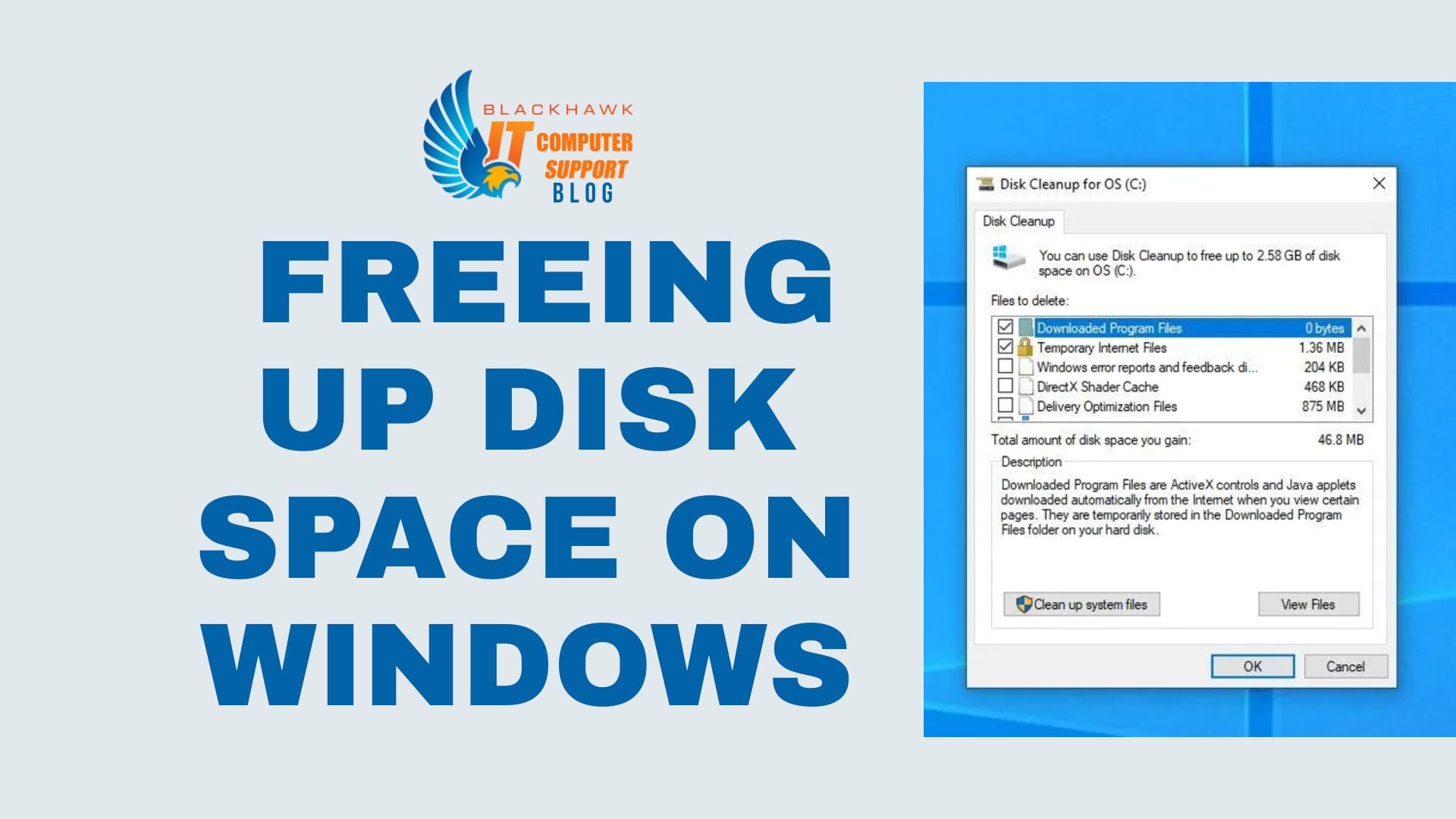
Deleting is a friend who sometimes lies: you’ll think you’re deleting the cache of a 0-byte app, but the system might still stash things in AppData and Windows.old after major updates. The safest path is to run Disk Cleanup or Storage Sense. Disk Cleanup is the polite adult in the room, offering to remove temporary files, thumbnails, and old update files with the grace of a refund employee. Storage Sense can automate this, letting Windows pretend it’s tidying while you binge-read boring emails.
Targeted Triage: Temp Files, Thumbs, and the Recycle Bin
Temp files: they accumulate like dust bunnies that panic at the mention of a vacuum. Delete them. Thumbnails: the tiny JPEGs of your photos might be where space goes to retire. Clear them if you’re confident you won’t need to view every icon at 2x. Recycle Bin: empty it. It’s not a tragedy; it’s a mercy, freeing up that previously cherished wasteful nostalgia for someone else to squander.
Old Backups and System Files: No, They Weren’t Cute
Windows.old and previous system backups are the cruel memory of every update. If you’re sure you won’t roll back to Windows 10 in case of coffee spills, remove them through Disk Cleanup or Storage Settings. Just don’t be surprised if Windows chucks a few updates back into your life when you least expect it.
Ongoing Habits: Automate or Suffer the Slothful Slump
Set Storage Sense to work in the background, schedule monthly cleanups, and watch as your disk space finally learns to live within its means. Consider relocating large media to an external drive or cloud storage, because romance at the TB level is expensive and not as dramatic as it sounds.
In the end, the most persuasive evidence that you’ve tamed the clutter is not the number of gigabytes freed, but the quiet relief that your PC no longer sounds like a whirling tornado every time you save a file. You didn’t conquer space; you domesticated it, one cleaned folder at a time.