

Ah, Windows, that generous compendium of helpful pop-ups and uninvited gigabytes. The machine pretends to be a bustling library, while secretly hoarding another megabyte for a reboot you never scheduled. If you're reading this, you deserve a trophy for watching the Disk usage bar creep toward red while your coffee grows cold. Here's a guide steeped in irony and practical steps to reclaim some sanity—and some space.
Declutter like a picky cat: start with the obvious
Uninstall programs you never opened in the last decade: Settings > Apps > Apps & features, sort by size, and remove those "essential" toolbars that multiplied faster than your patience. If your desktop looks suspiciously tidy, you’ve probably found the secret to Windows etiquette: never hoard icons you never use.
Two-minute miracles: Disk Cleanup and system files
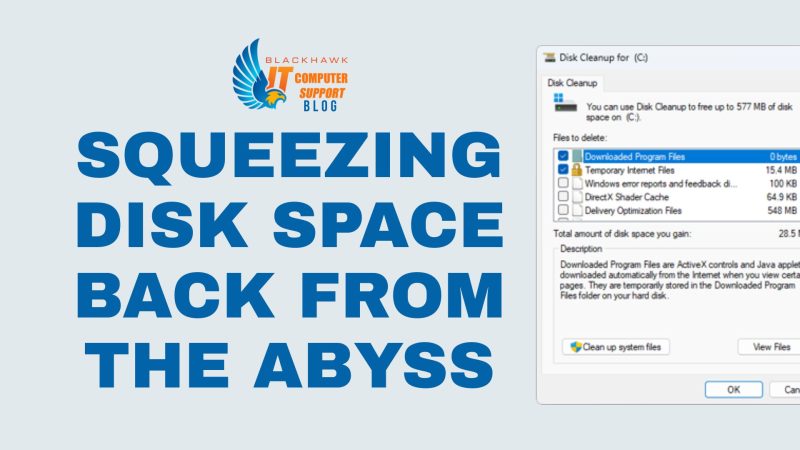
Run Disk Cleanup (type cleanmgr in the Start menu). Pick System Files, check Windows Update Cleanup and Temporary Files, maybe Delivery Optimization Files if you’re feeling brave. Remember: System Restore is a convenient stealth hoarder—trim old restore points, but leave a safety cushion so Windows doesn’t forget how to behave.
Clean the clutter from Downloads and documents
Downloads is a scavenger hunt. Sort by size or date, delete the relics of software trials you never finished, and move anything you actually need to a proper folder. If you’ve got a media collection, offload it to external storage or cloud—your future self will thank you, possibly with a smug notification from the OS.
Storage Sense and automatic upkeep
Storage Sense can automate the boring stuff: temporary files wipe themselves, Recycle Bin empties periodically, and you stop feeling personally responsible for every cache ever created. Enable it in Settings > System > Storage, and let Windows nag you into tidiness.
Deep clean: caches, browser data, and more
Clear browser caches (Edge, Chrome, Firefox) and inspect the Temp folder (%temp%) to delete what you don’t recognize as a secret project. It’s not malware; it’s just Windows learning to breathe again.
Restore points and backups
Old restore points can be sentimental; manage them via System Protection. Delete what’s unnecessary, keep a couple for safety, and remember that you’re balancing risk with relief.
When in doubt, move forward: external storage and cloud
If space is still shy, move large media or backups to an external drive or cloud storage. It’s not glamorous, but it’s adult computing, and your hard drive will thank you for the restraint.
Space isn’t a myth; it’s a resource you ration with a bit of humor and a little discipline. Windows will keep growing its library of helpful files, but you decide what deserves to live there—and what deserves to be forgotten, so the system can finally feel a sense of room to grow.