

This practical guide shows you how to reclaim disk space on Windows by using built-in tools, prudent file management, and a maintenance mindset. You will learn to identify space hogs, clean safely, and set up ongoing practices to prevent future bloat.
Prerequisites
Before you begin, ensure you have:
- Admin access on the computer
- Backups of important files (external drive or cloud backup)
- Windows 10 or Windows 11 installed
- Time for a careful cleanup (roughly 30–60 minutes, depending on data)
Step 1: Assess current usage and set goals
Assess your current usage by inspecting free space and the largest categories. This helps you set a concrete target for cleanup.
- Open Settings > System > Storage; note free space on the C: drive and the top storage categories.
- Identify space hogs (Apps & features, System & reserved, Photos, Videos, and Downloads).
- Set a target (e.g., reclaim 20 GB or reach 25% free space).
- Pro-tip: If you have multiple drives, consider moving non-essential data to another drive to free C: more quickly.
- Warning: Do not delete Windows or program files unless you know their purpose.
Step 2: Clean temporary and system files
Remove temporary data and clear caches that accumulate over time.
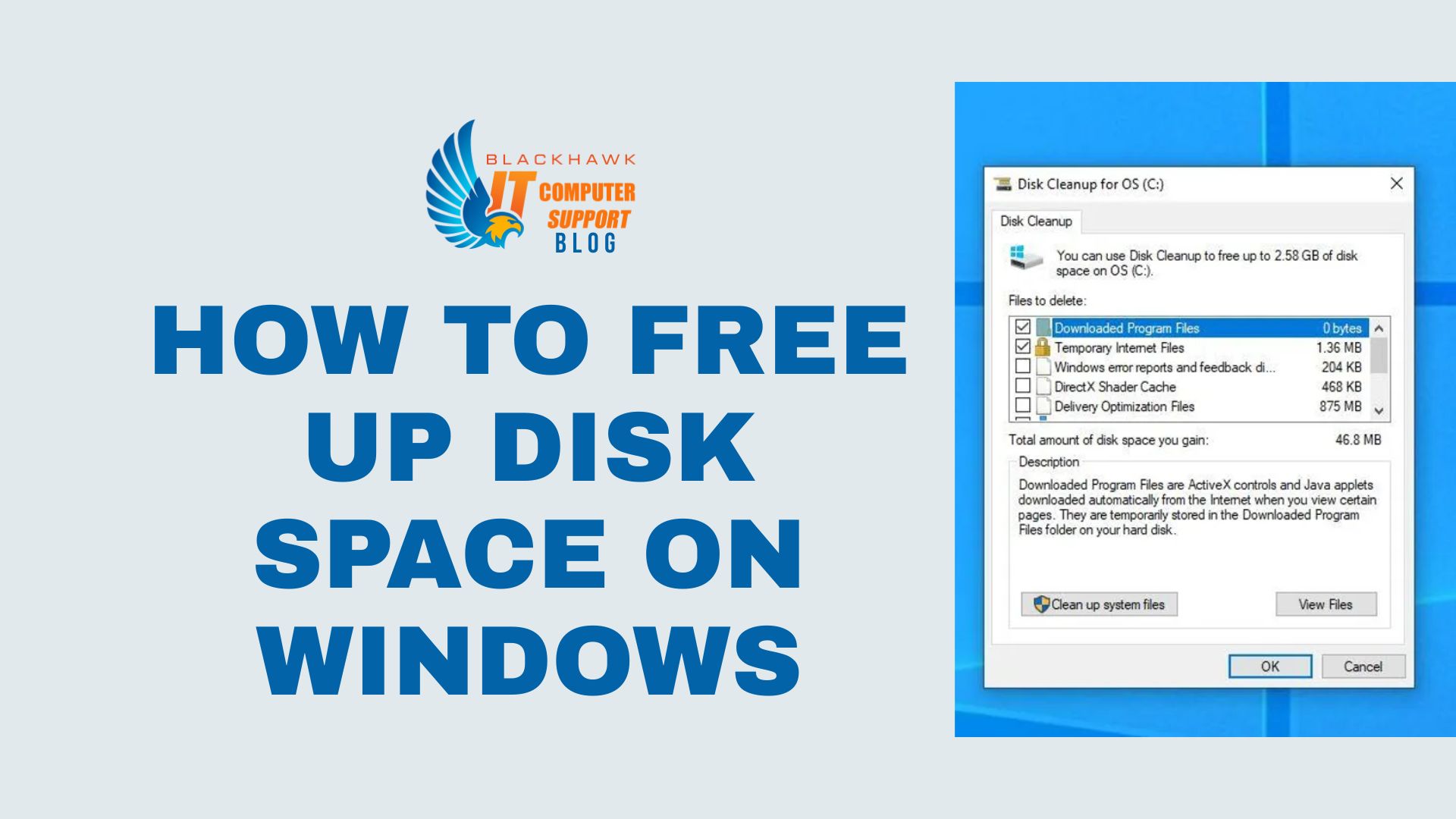
- Run Disk Cleanup: type Disk Cleanup in the Start menu and select the system drive (C:).
- Select Temporary files, Recycle Bin, and Downloads (optional) for removal.
- Enable Storage Sense later to automate future cleaning.
- Pro-tip: Run Disk Cleanup as Administrator to access system temp locations.
- Warning: Deleting critical installation files can break apps; keep a backup if unsure.
Step 3: Uninstall or move nonessential apps
Remove programs you no longer use or move large apps to another drive if supported.
- Open Settings > Apps > Apps & features; sort by size and uninstall unused apps.
- For large games or programs, use the program’s "Move" option or relocate to another drive if available.
- Keep essential apps; avoid removing drivers or security software unless you know the impact.
- Pro-tip: Consider temporarily disabling features you don’t use to reclaim space from large features.
- Warning: Some apps are required by Windows; use Reset/Repair instead of uninstalling if doubtful.
Step 4: Locate and manage large files and duplicates
Find sizable files and relocate or delete them responsibly.
- Search File Explorer for large files: in the search box, type size:>100MB to list big items.
- Review videos, installers, and ISO images; move to an external drive or delete if no longer needed.
- Consider storing photos and videos in cloud storage or on an external disk to free local space.
- Pro-tip: Use OneDrive Files On-Demand to keep copies in the cloud while showing placeholders locally.
- Warning: Don’t delete irreplaceable data without a backup.
Step 5: Offload data and set up ongoing maintenance
Relocate important data and automate ongoing cleanup to maintain headroom.
- Move large personal folders (Documents, Desktop, Pictures) to an external drive or a secondary internal drive.
- Enable Storage Sense and set thresholds to keep at least 20–25% free space.
- Schedule a monthly quick cleanup check to review usage and repeat steps as needed.
- Pro-tip: Enable automatic backups for relocated data.
- Next steps: after cleanup, monitor storage usage monthly and adjust thresholds if drive usage changes.