

This guide helps you type accented characters on Windows quickly and accurately, enabling fluent multilingual writing without constant layout switching.
Introduction
In this guide you'll learn multiple reliable methods to type accented letters on Windows, with practical steps, tips, and use cases. Choose the method that matches your workflow—whether you work with a full US-International keyboard, rely on Alt codes for quick one-off characters, or prefer a visual picker when you need rarely used symbols.
Prerequisites
- Windows PC (Windows 10/11)
- Keyboard with a numeric keypad or a laptop that supports a numeric keypad and Num Lock
- Basic familiarity with keyboard shortcuts
Step 1: Choose a method that fits your workflow
Decide among these reliable options: (a) US-International dead-key keyboard, (b) Alt codes with the numeric keypad, or (c) Character Map for rare characters. Pro-tip: you can switch input methods quickly with Win + Space. Common mistake: not enabling the keyboard layout before typing—check the language icon in the taskbar and switch if needed.
Option A — US-International keyboard (dead keys)
Enable the layout: Settings > Time & Language > Language & region > Add a language (English > US) and choose US-International. Then switch input with Win + Space. Examples: ' + a yields á, ` + e yields è, " + o yields ö, ~ + n yields ñ. Practical tip: because these are dead keys, you must press the letter after the dead key; if you press space, you’ll insert the dead key itself.
Step 2: Use Alt codes for quick characters
Turn on Num Lock; hold Alt and type the numeric code on the keypad, then release to insert the character. Examples: Alt+0225 → á, Alt+0233 → é, Alt+0241 → ñ, Alt+0246 → ö, Alt+0252 → ü. Caveat: some apps may not support all codes depending on the code page; on laptops without a numeric keypad you may need an on-screen keyboard or a dedicated numeric keypad app.
Step 3: Use the Character Map for rare glyphs
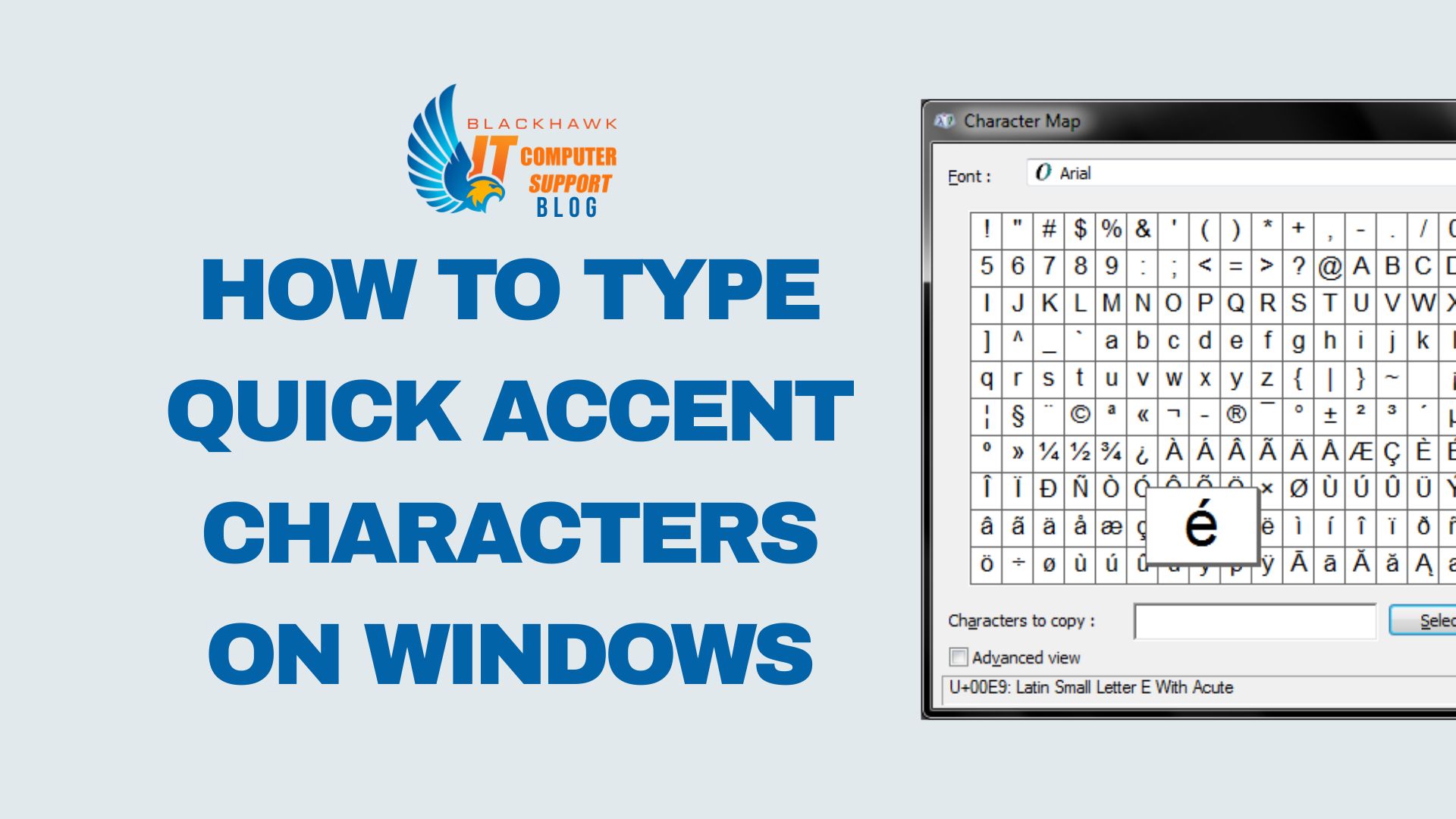
Open Start > Windows Accessories > Character Map, choose a font, locate the character, click Select, then Copy and paste into your document. Pro-tip: set Advanced view to search by Unicode to find obscure symbols. Example: å, ø, č, ñ.
Step 4: Apply practical tips for daily use
Keep a short reference sheet of frequently used codes, or assign shortcuts with your text expander. If you work across multiple languages, enable US-International as your default when typing in those languages and fall back to Alt codes for rarely used symbols. Common mistakes: using the wrong code page, mixing uppercase and lowercase accents, or relying on the wrong keyboard layout in your editor.
Step 5: Plan next steps
Practice with short paragraphs to identify your preferred method, then tailor your workflow accordingly. If you type in several languages, consider keeping US-International enabled and using Character Map for infrequent glyphs. Explore editor-specific shortcuts or autocorrect rules to streamline your accented-letter workflow.