
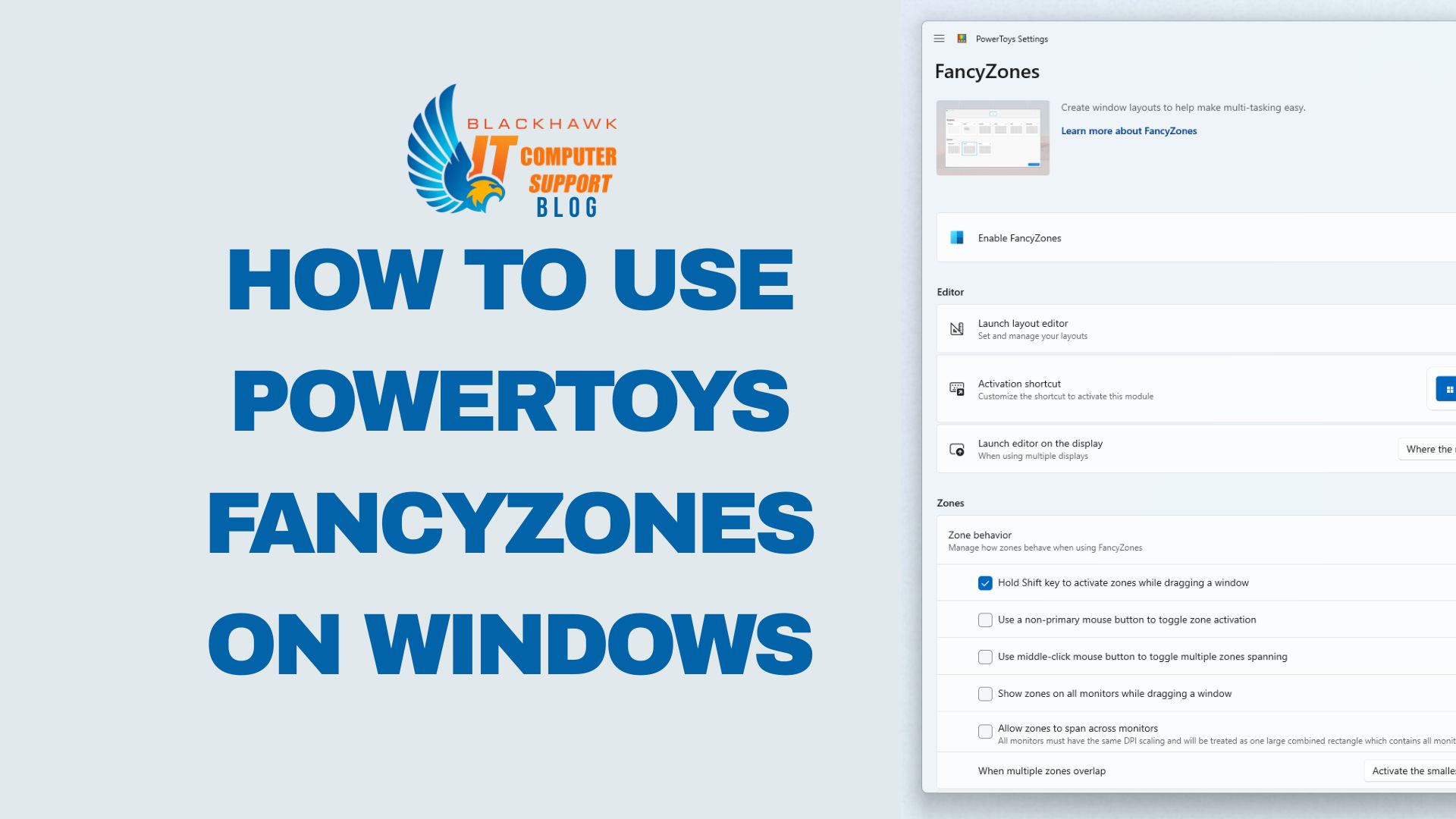

PowerToys FancyZones is a robust window manager that lets you snap apps into precise layouts. This guide shows beginners how to set up, craft custom layouts, and apply them for everyday tasks, improving focus and multitasking.
Prerequisites
- Windows 10 or 11 PC with Administrative access
- PowerToys installed (latest release from the official repository)
- Two or more apps you commonly use side-by-side (optional but helpful for examples)
Step 1: Install PowerToys and enable FancyZones
Install PowerToys
Install PowerToys from the official source and complete the setup. Ensure the installer finishes with startup options enabled so FancyZones loads on login. Pro-tip: temporarily disable security software if installation stalls, then re-enable afterward.
Enable FancyZones
Open PowerToys, select the FancyZones tab, and toggle Enable FancyZones on. Optionally enable Launch on Startup. Click "Open layout editor" to verify access. Pro-tip: use the grid editor to confirm zones align with your primary monitor edges and avoid overlap.
Step 2: Create a custom layout
Open the layout editor
Click "Launch layout editor" and start with a simple grid (2 columns by 1 row) to learn the basics. Name your layout for quick recall. Examples: “Work-Docusign-Chat” or “Code-Browser.”
Define zones
Drag to resize zones, snap to monitor boundaries, and choose a layout type (Grid, Rows, or Columns). Pro-tip: keep left and right zones roughly even for balanced multitasking. Use one large zone for documents and a narrower zone for reference dashboards.
Step 3: Apply layouts to windows
Snap windows into zones
To assign a window to a zone, drag it while holding Shift and drop it into the desired zone. Release to lock the window into place. Pro-tip: use Win + Arrow keys to nudge a focused window before snapping.
Arrange apps by task
With a layout active, open your typical task set (e.g., browser, editor, chat). Place each app into its designated zone to reproduce your template quickly. Use multiple layouts for different workflows (e.g., writing vs. research).
Step 4: Refine and troubleshoot
Fine-tune for consistency
Test across tasks and adjust zone sizes to ensure readability and comfortable eye distance. Save multiple layouts for different tasks. Pro-tip: name layouts descriptively and export them for sharing or backup.
Troubleshooting and next steps
Common issues include misaligned zones or windows not snapping. Reset the layout editor, reapply the layout, or update PowerToys. Next steps: explore additional layouts, keyboard shortcuts (Win + Shift + Arrow to move windows between zones), and per-monitor configurations to optimize your workflow.
Next steps
Experiment with more complex grids, assign per-app layouts, and establish a short routine to switch layouts as tasks change throughout the day.