
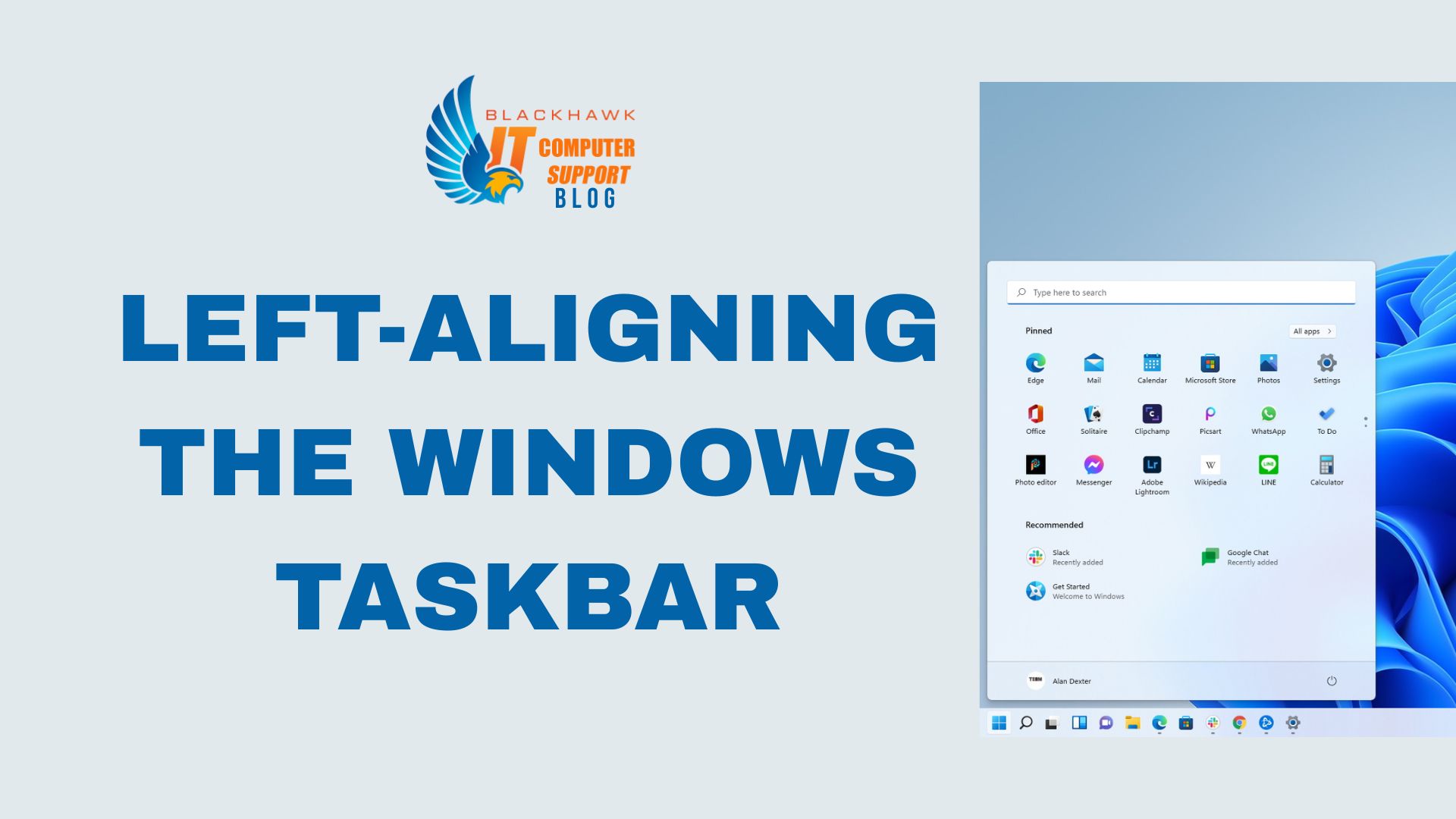

In this guide you will adjust Windows so the taskbar sits on the left, a layout that improves accessibility, reduces cursor travel, and aligns with many productivity workflows. By the end you will be able to access Start and app icons quickly, with a setup that matches your preferred reading order and screen real estate.
Introduction
Left-aligning the taskbar is a small change with outsized practical benefits. It standardizes icon placement, minimizes wrist movement when launching apps, and aligns with common left-to-right workflows. The steps below assume you're on Windows 11 (version 22H2 or later) where alignment is a built-in setting.
Prerequisites
Before you begin, verify the following:
- Windows 11 (22H2 or later) or later version; this guidance focuses on built-in Taskbar alignment.
- Basic familiarity with Windows Settings (Win+I shortcut helps).
- A display configuration you can return to if needed.
Step 1: Open Settings
Open Settings quickly with Win+I and navigate to Personalization. If the search shortcut helps, type "taskbar" to locate the relevant option faster.
- Tip: Use Alt+Tab to compare the before-and-after layout as you adjust.
- Warning: Avoid making multiple changes in one go; test alignment after each action.
Step 2: Go to Taskbar settings
In Personalization, select Taskbar to access alignment and related preferences. Review the "Taskbar items" and "Taskbar behaviors" sections to understand what will move with alignment.
- Pro-tip: If you turn on "Always show all icons in the taskbar," you’ll see more icons on the left when aligned left.
Step 3: Change Taskbar alignment to Left
Under Taskbar behaviors, set Taskbar alignment to Left. This immediately shifts the Start button and icons to the left edge.
- Common mistake: Changing for one user profile but not the default account. Ensure you apply on the intended account.
- Note: In a multi-monitor setup, alignment applies system-wide.
Step 4: Verify, tweak, and finalize
Check each monitor, confirm icons align as expected, and adjust additional preferences (e.g., badges, corner icons) to optimize visibility and workflow. If the option is greyed out, refresh Settings or sign out and back in.
- Use case: Left-aligned taskbar works well for users who frequently launch apps from the Start menu or Quick Launch tiles.
- Warning: If you rely on centered taskbar aesthetics for aesthetic reasons, consider a temporary side-by-side comparison before finalizing.
Next steps: Explore accessibility tweaks, keyboard shortcuts for quick launching, and, if desired, experiment with third-party customization while preserving system stability.