
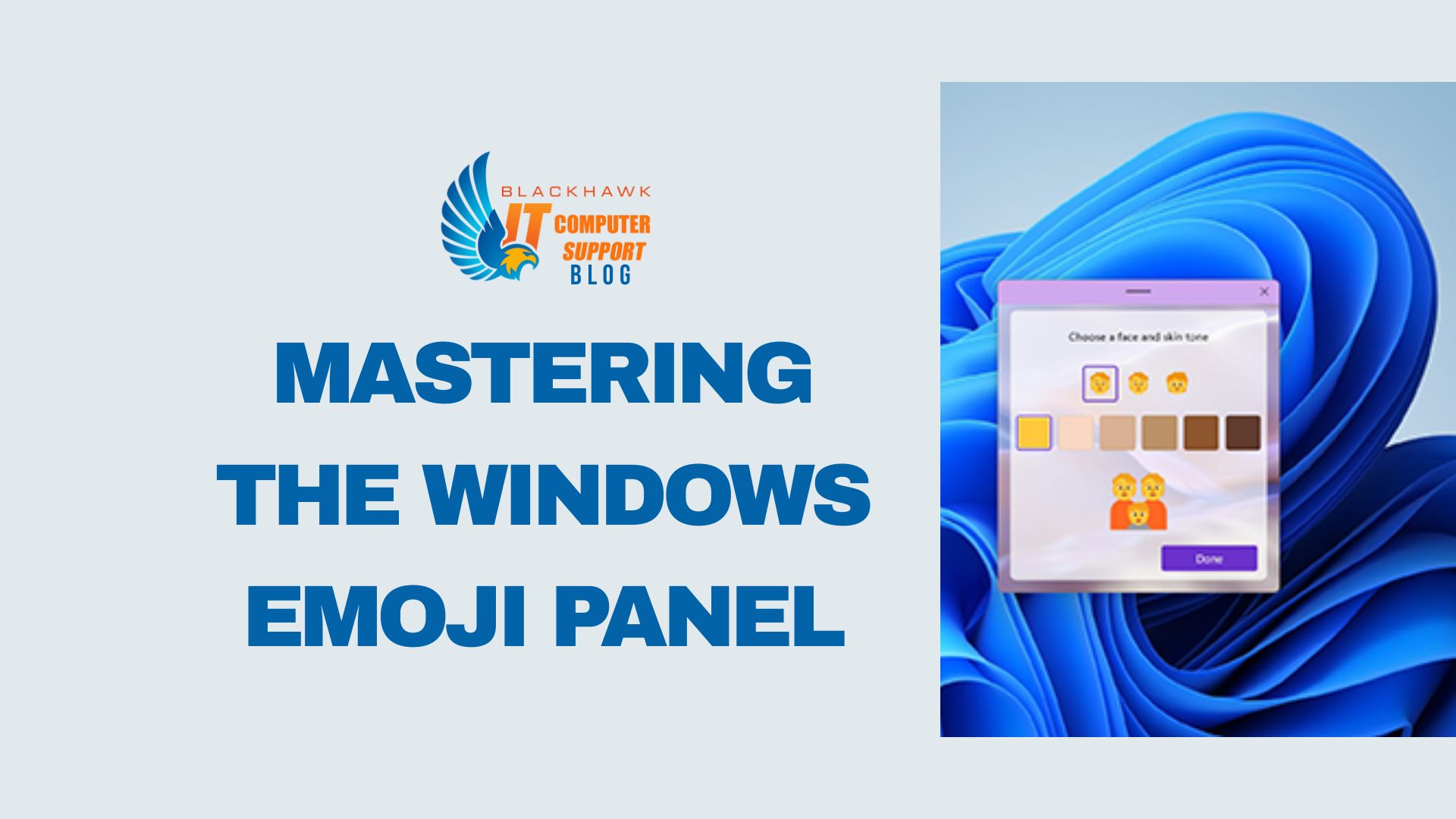

This guide demonstrates how to access, browse, and effectively use the Windows emoji panel to communicate clearly and efficiently. You will learn precise steps to insert emojis into text, search efficiently, and customize your workflow for speed and accessibility.
Prerequisites
Windows 10 or 11, a keyboard, and a basic familiarity with typing. Ensure your system language and regional settings support emoji input. Primary shortcuts: Win + . (period) or Win + ; (semicolon) to open the emoji panel.
Step 1: Open the Emoji Panel
Action: Open the panel quickly without leaving your keyboard.
How to do it
- Press Win + . to open the emoji panel. Alternative: Win + ; also works on some configurations.
- Keep your focus near the typing area to reduce cursor movement.
Pro-tips and cautions
- If nothing happens, ensure your OS is updated and your keyboard language supports emoji shortcuts.
- Use the panel's search to jump to common emojis (e.g., "smile", "thumbs up").
Step 2: Find the Right Emoji
Action: Locate the emoji that best conveys your message.
What to do
- Navigate categories with arrow keys or your mouse.
- Type a keyword in the search box to filter results.
- Switch between Emoji, Kaomoji, and Symbols as needed.
Tips
- Use keywords like "smile", "heart", or "fire" to quickly find common symbols.
- Refer to the Recent row for frequently used emojis.
Step 3: Insert and Reuse
Action: Insert the chosen emoji into your text and reuse where appropriate.
What to do
- Click an emoji or press Enter to insert into your document or message.
- Copy with Ctrl+C if you need to paste elsewhere.
- Rely on the Recent or Favorites row for fast access.
Tips
- Note rendering differences across apps and platforms.
- Avoid overusing emojis in professional contexts.
Step 4: Improve Speed and Accessibility
Action: Personalize shortcuts and adapt the panel to accessibility needs.
What to do
- Pin frequently used emojis to Favorites if your build supports it.
- Use keyboard navigation (arrow keys, Enter) to minimize mouse use.
- Enable any available accessibility options (larger panel, screen reader hints) in Windows settings.
Tips
- Practice in low-stakes chats to build muscle memory.
- Check app-specific rendering when sharing emojis.
Next steps: Practice using the panel in real conversations, experiment with search terms, and tailor the panel to your workflow across messaging, documents, and social media.