
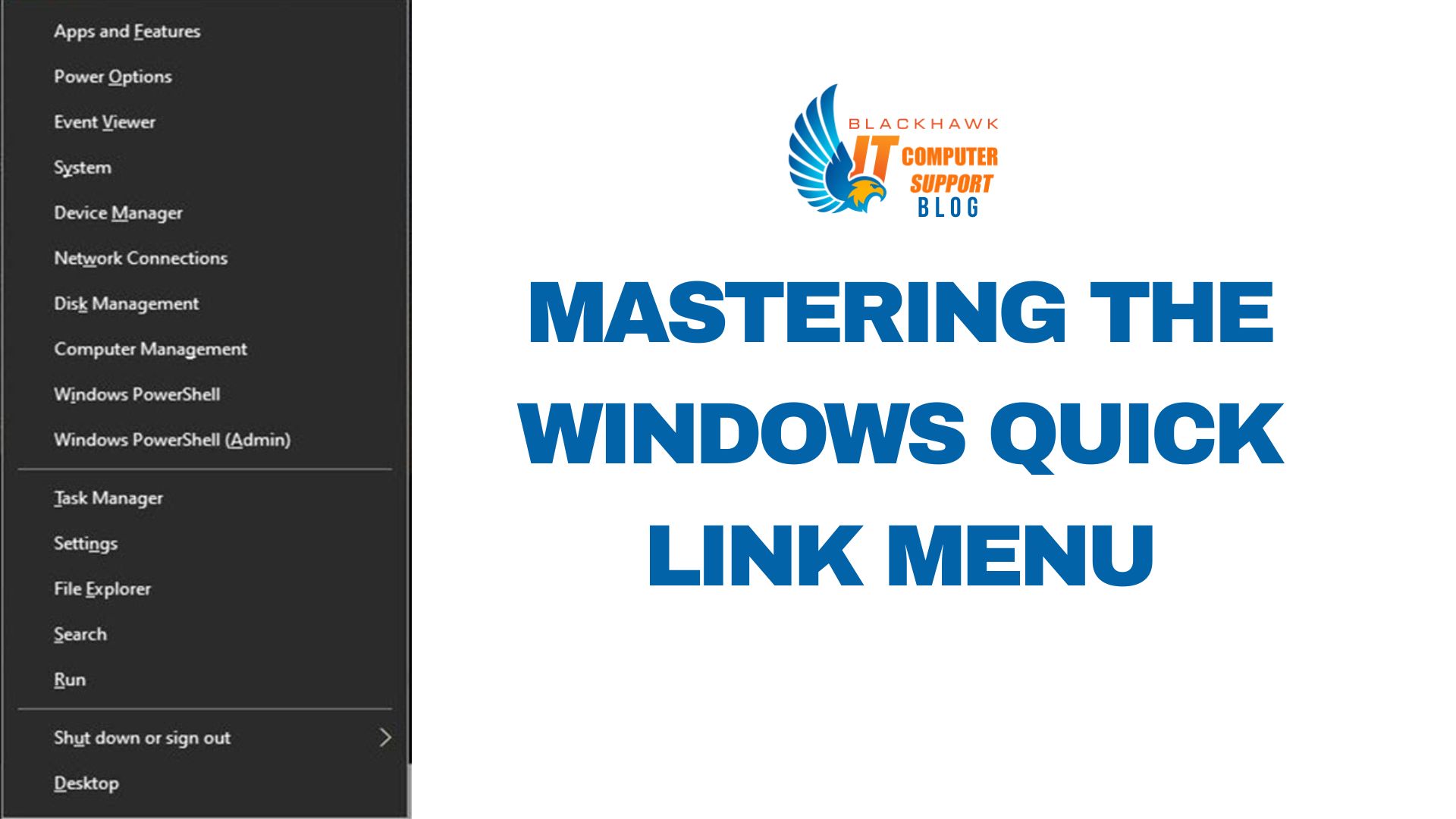

Using the Windows Quick Link Menu (Win+X) gives fast access to essential system tools. This guide shows you how to customize, add shortcuts, and reorder or remove entries to streamline common tasks. The changes persist across reboots and can boost efficiency for both new and experienced users.
Prerequisites
Ensure you are on Windows 10 or 11. You should have basic shortcut creation skills and access to your user profile folders. Backup before making changes.
- Windows 10/11 installed
- Access to your user AppData folder (hidden items may need revealing)
- Ability to create or copy .lnk shortcuts
- Basic backup plan (copy of the WinX folder in case you need to revert)
Step 1: Locate the WinX folders
Locate the WinX menu folders: C:Users
Pro tip
- Keep a backup of the original Group-1/2 contents before editing.
Step 2: Add a new shortcut to a group
Copy an existing shortcut or create a new .lnk pointing to your target (e.g., Task Manager.exe or a custom tool). Place the new .lnk into Group-1. Rename with a numeric prefix to control order (01-MyApp.lnk appears earlier). If you’re editing a shared PC, confirm permissions first. Examples: 01-TM.lnk for Task Manager, 02-MyTool.lnk for your favorite utility.
Pro tip
- Keep names concise; the display uses the shortcut name.
Step 3: Remove or rearrange items
To remove, delete the unwanted shortcut from its Group folder. To reorder, rename the files with leading numbers (e.g., 01-, 02-). Do not delete built-in entries you rely on unless you’ve confirmed alternatives. Warning: misplacing items can clutter the menu or break quick access.
Pro tip
- Test after changes by pressing Win+X and verifying new order.
Step 4: Verify and refine
Press Win+X to verify the changes. If something is missing, re-check the file path, file names, and folder choice. Consider using a dedicated tool like Win+X Menu Editor for more granular control. Next steps: for deeper customization, explore the Win+X Menu Editor to add or reorder items with a GUI.