
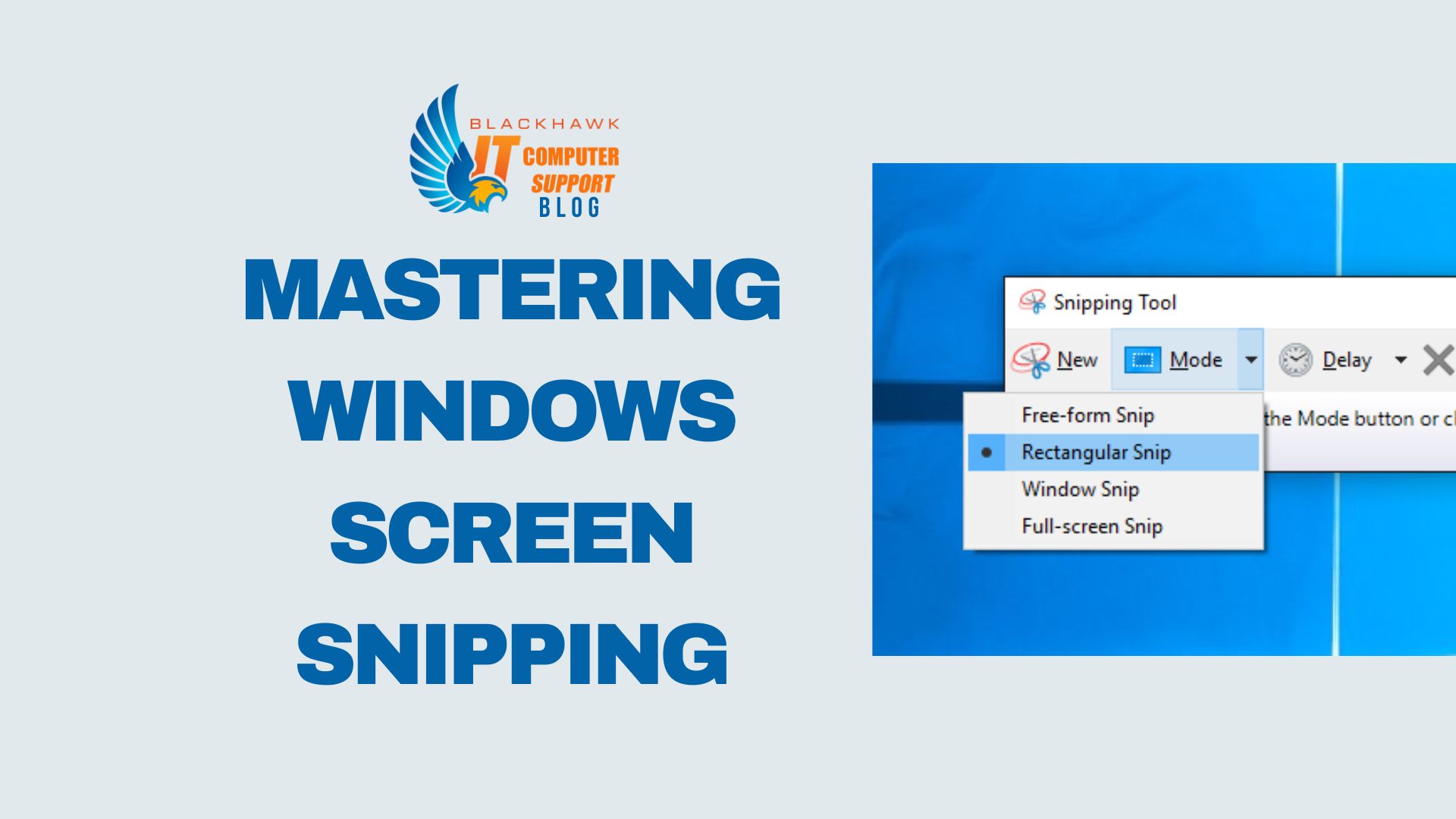

This guide shows you how to snip screens on Windows quickly and precisely using the built-in tool. You will learn to choose modes, capture, annotate, save, and reuse settings to streamline repetitive tasks. Precise screenshots save time and improve communication in reports, bug reports, and tutorials.
Prerequisites
- Windows 10 (original or later) or Windows 11
- Snip & Sketch or Snipping Tool installed (default on modern Windows builds)
- Keyboard with Windows key and familiar shortcuts
Step 1: Open the snipping interface
Open the Snipping Tool or Snip & Sketch from the Start menu, or use the universal shortcut Windows key + Shift + S to begin a capture immediately. The app's capture rectangle will appear and wait for you to draw the area.
Pro-tips: If the capture window doesn’t appear, ensure the app is up-to-date. Common mistake: trying to capture before the selection is drawn; always start the rectangle or window selection after invoking the tool.
Step 2: Choose the snip mode
Choose the mode that matches your goal: Rectangular for precise areas, Free-form for irregular shapes, Window for a specific app window, Full-screen for the entire display. The mode menu is near the top of the interface.
Use-case: capturing a long webpage header is best with Rectangular; grabbing an app dialog is ideal with Window mode. Pro-tip: Rectangular can miss content off-screen; plan your crop and consider taking multiple snips for large pages.
Step 3: Capture, annotate, and copy
Drag to select the area, or click a window to capture it. After capture, annotate with your pen/highlighter, then choose to Copy, Save as PNG/JPG, or share directly to your clipboard or apps like Word or OneNote.
Common mistake: forgetting to save or copy after annotating—always complete the action you intend (save or paste) before closing.
Step 4: Save consistently and integrate into workflow
Save snips to a dedicated folder with descriptive names (date, subject). Integrate with your workflow by pasting into documents, tickets, or emails. Use Windows shortcuts (Win+Shift+S) for speed and pair with a clipboard manager or cloud-synced folder for accessibility.
Next steps: practice with different modes on real tasks (bug reports, design specs, or how-to notes), and explore additional apps (OneNote, Word) to extend your snipping capabilities.