
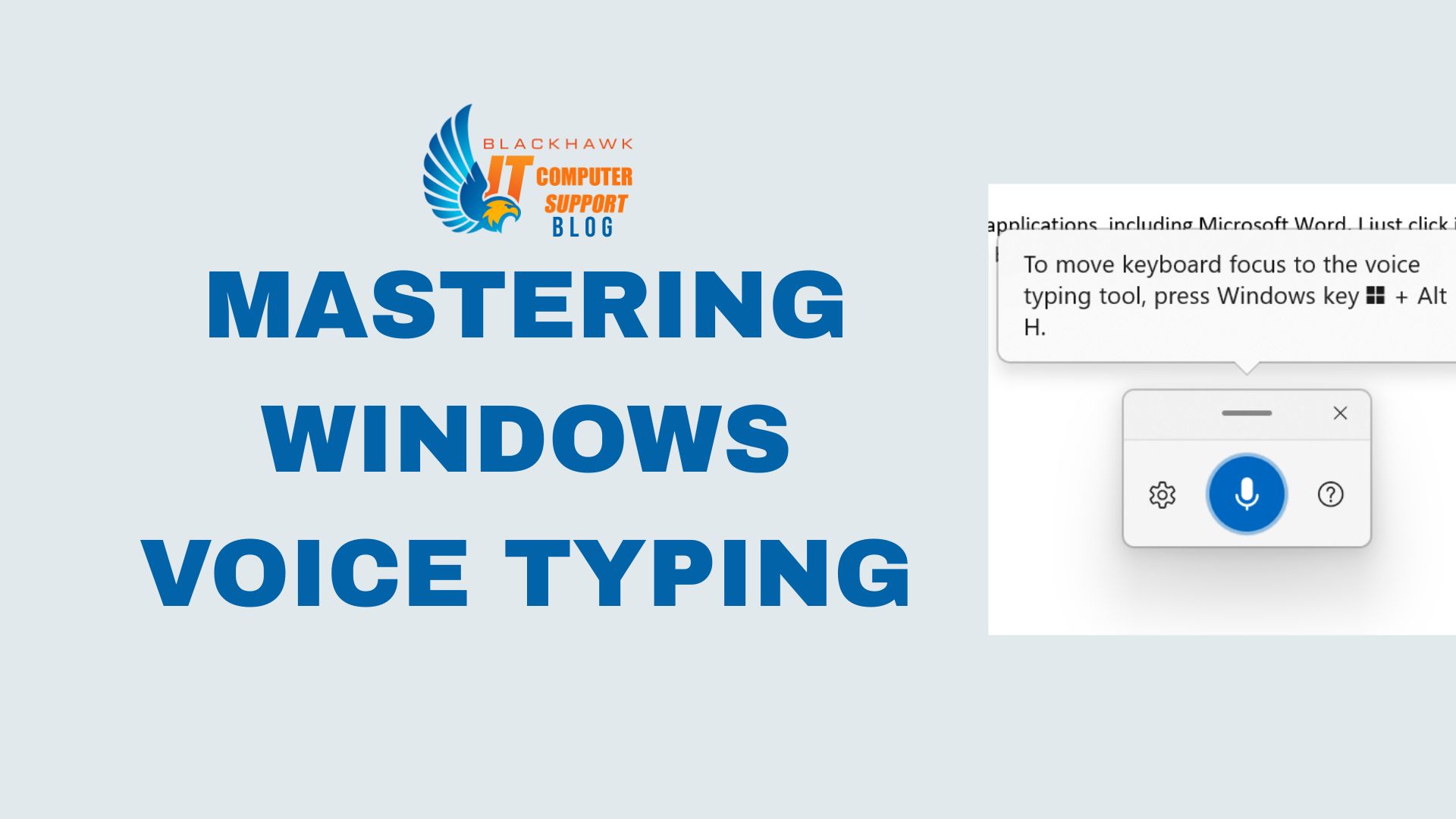

Voice typing on Windows lets you compose text hands-free, power through notes, emails, and documents faster, and reduce repetitive strain. This guide shows precise steps a beginner can follow to enable, start, and improve your dictation workflow, with practical tips, warnings, and real-world use cases.
Prerequisites
- Microphone or headset that works with Windows
- Windows 10 or Windows 11 with Voice Typing available
- Language and region settings aligned with your dictation language
- An active internet connection is helpful for some features, but offline dictation is supported in most setups
Step 1: Check hardware and language
Verify your microphone is connected, unmuted, and set as the default input device. Test it in Windows Settings > System > Sound > Input. Ensure input volume is adequate and there is no background interference.
- Tip: Use a quiet space to reduce misrecognition.
- Pro-tip: Label your mic as "Default" to avoid switching audio devices accidentally.
Step 2: Launch Voice Typing
Open Voice Typing by pressing Windows+H. If prompted, grant permission for the app to access your microphone. If Voice Typing doesn’t start, check Settings > Time & language > Language > Speech and ensure Online speech recognition is enabled.
- Pro-tip: Keep a glass of water handy; speaking clearly helps accuracy.
- Warning: Voice data may be sent to Microsoft servers for improvement depending on settings.
Step 3: Dictate text and punctuation
Speak clearly and naturally. Use punctuation commands such as "period," "comma," "new line," or "quote" to structure text without typing. Pause briefly between sentences to improve accuracy.
- Example: "Schedule a meeting with the team at 3 p.m. comma please send invites."
- Use-case: Drafting quick meeting notes or composing an email draft hands-free.
Step 4: Edit mistakes and formatting
Review the dictated text and correct errors with the keyboard or voice commands like "undo" or "delete that." Use the mouse or arrow keys to place the cursor for targeted edits.
- Pro-tip: Read back aloud after dictation to catch errors you might miss visually.
- Warning: Long runs of similar-sounding words can reduce accuracy; fix them early.
Step 5: Integrate into workflows and next steps
Apply dictation to real tasks: composing emails, taking notes, or drafting documents. Practice with short sessions, then scale up. Next steps: customize language settings, train yourself with common phrases, and experiment across apps like Word, Outlook, and Notes to boost efficiency.