


Windows 11 tips 2026: Before you start
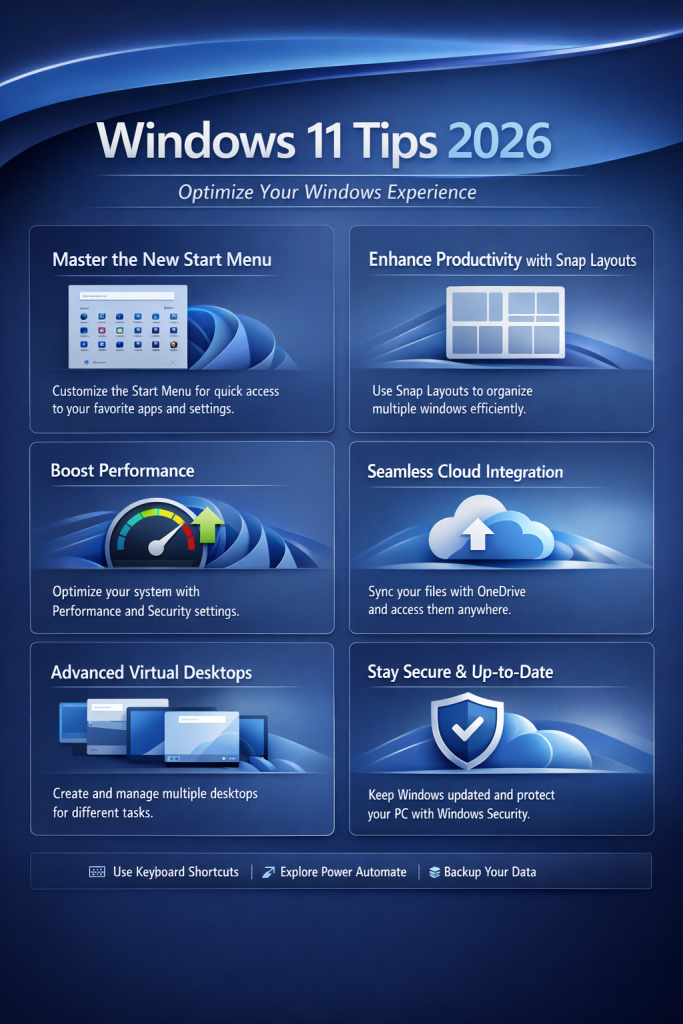
Why Windows 11 Tips 2026 Matter for Business Productivity in 2026
You can learn more about Snap Layouts directly from Microsoft’s official documentation here:
https://support.microsoft.com/windows
Windows 11 tips 2026 focus on small, practical improvements that make everyday work faster and less frustrating for home and small business users. Recent Windows 11 updates through late 2025 continue polishing everyday Windows features—think more consistent dark mode, smarter Start menu customization, and quicker search. This beginner Windows guide keeps it simple: step-by-step instructions, zero jargon, and local, practical examples that save time every single day.
These Windows 11 tips 2025 are designed for everyday users who want simple productivity gains without technical complexity.
If you need help optimizing your PC, see our computer support services page. https://blackhawkcomputers.com/
Before you start: what you need
Make sure your PC is running Windows 11 with the latest updates installed. You don’t need admin access for most tips. An internet connection helps for search and widgets.
Whether you're using Windows for business or personal productivity, these Windows 11 Tips 2026 ensure you’re getting the most out of Microsoft’s latest updates.
1) Customize the Start menu for faster access
Make your Start menu a launchpad for the apps and folders you use most—no more hunting around.
- Click Start, then select Settings > Personalization > Start.
- Turn on “Show recommendations” if you want quick recent files; turn it off for a cleaner look.
- Click “Folders” and toggle shortcuts (Documents, Downloads, Network) to appear next to the power button.
- Open Start, right-click any app and choose “Pin to Start.” Drag tiles to reorder.
Why it’s useful: Instant access to your daily tools is one of the most underrated Windows 11 productivity hacks.
Screenshot idea: Start menu open with pinned apps and folder icons near the power button. Another view: Settings > Personalization > Start page highlighted.
- Pro tip: Group related apps (e.g., Office suite) in adjacent rows for muscle-memory speed.
- Watch out: Too many pins can create clutter—curate monthly.
2) Arrange apps with Snap Layouts for clean multitasking
Snap Layouts let you quickly tile windows so your screen always feels organized.
- Hover over a window’s maximize button to see layout options.
- Choose a layout (e.g., 2-column). Windows suggests spots—click to place.
- Repeat for other apps (browser, email, calendar) until your grid is complete.
Why it’s useful: Keep research, email, and documents visible without constant switching.
Screenshot idea: The Snap Layouts preview hovering above a browser window. Second shot: A 2x2 grid with File Explorer, Edge, Outlook, and Teams arranged.
- Pro tip: Press Win + Arrow keys to nudge windows into place fast.
- Common mistake: Dragging by hand first can fight Auto Snap—choose the layout before placing windows.
3) Toggle dark mode fast (and enjoy 2025’s more consistent look)
Dark mode reduces eye strain and, with recent updates, looks more consistent across File Explorer and many dialogs.
- Open Settings > Personalization > Colors.
- Choose “Dark” under “Choose your mode.” For a quick feel, set “Accent color” to Automatic.
- (Optional) In File Explorer, confirm the dark theme applies cleanly across sidebars and context menus.
Why it’s useful: Comfortable contrast makes long days gentler—and it looks modern.
Screenshot idea: Colors settings panel with Dark selected. Second shot: File Explorer in dark mode with improved, consistent accents.
- Pro tip: Create a desktop theme with dark mode and your wallpaper; switch themes to toggle quickly.
- Watch out: Some third-party apps may not follow theme settings—update them for best results.
4) Separate work and personal life with Virtual Desktops
Use Virtual Desktops to keep your Danville home finances separate from your San Ramon client projects.
- Press Win + Tab to open Task View.
- Click “New desktop” at the top.
- Right-click a desktop to rename it (e.g., Work, Home).
- Drag open apps onto the desktop where they belong.
- Switch with Win + Ctrl + Left/Right.
Why it’s useful: Fewer distractions, clearer focus—like multiple monitors without the clutter.
Screenshot idea: Task View with two desktops, one labeled Work, one Personal, each with different apps.
- Pro tip: Set different wallpapers per desktop for a quick visual cue.
- Common mistake: Closing apps instead of moving them—just drag into the right desktop.
5) Learn from the lock screen with widgets and quick tips
Lock screen tips and widgets can surface calendar items, weather, and quick guidance without signing in.
- Go to Settings > Personalization > Lock screen.
- Select your status widget (Calendar, Weather, Mail) and enable tips where available.
- Lock your PC (Win + L) to preview.
Why it’s useful: Glanceable info cuts context switching—great before a Zoom call or school pickup run.
Screenshot idea: Lock screen showing calendar and weather widgets. Second shot: Lock screen settings page.
- Pro tip: Choose Calendar if you live by appointments; choose Weather if you commute across the Bay.
- Watch out: Don’t display sensitive email previews if others can see your screen.
As Windows continues to evolve, staying current with Windows 11 Tips 2026 can give you a competitive edge in both speed and efficiency.
6) Find files faster with improved File Explorer search
Recent search refinements surface results sooner and handle natural keywords better.
- Open File Explorer and click in the search box.
- Type part of the file name or content phrase (e.g., “invoice Danville”).
- Use filters: Click the filter icon or type operators like type:=pdf or date:>=last week.
Why it’s useful: Less time digging, more time doing—especially when client names overlap.
Screenshot idea: File Explorer search box with highlighted filters. Second view: results list filtered to PDFs from last week.
- Pro tip: Save frequent searches in Quick access for one-click reuse.
- Common mistake: Searching “This PC” when you only need a specific folder—narrowing saves seconds.
7) Use Clipboard History to copy more, paste smarter
Clipboard History keeps multiple items you’ve copied so you can paste exactly what you need.
- Press Win + V and click “Turn on” if prompted.
- Copy several items (Ctrl + C), then press Win + V to pick the one to paste.
- Pin frequent snippets to keep them handy.
Why it’s useful: Stop bouncing back and forth—paste addresses, emails, and boilerplate text on demand.
Screenshot idea: Clipboard History panel open with pinned items and a highlighted selection.
- Pro tip: Clear sensitive items after meetings—open Win + V and remove them.
- Watch out: Clipboard History doesn’t survive a full sign-out unless pinned.
8) Launch apps instantly with taskbar shortcuts
Speed matters. Use the number keys to open or switch to apps pinned on your taskbar.
- Pin your everyday apps to the taskbar (right-click app > Pin to taskbar).
- Press Win + 1 for the first pinned app, Win + 2 for the second, and so on.
- Shift + click a taskbar icon to open a new window for multi-instance apps.
Why it’s useful: It’s like muscle memory for your software—fast, consistent, and intuitive.
Screenshot idea: Taskbar with pinned apps labeled 1–6 visually for explanation.
- Pro tip: Put your browser at position 1 and email at 2 for universal speed across PCs.
- Common mistake: Reordering taskbar apps breaks your muscle memory—keep it stable.
9) Protect your flow with Focus and Do Not Disturb
Focus sessions and Do Not Disturb help you crush deep work while Windows politely holds your notifications.
- Open Settings > System > Focus.
- Set a timer (e.g., 25 minutes), enable Do Not Disturb, and optionally link Spotify or To Do for ambient productivity.
- Click Start to begin; Windows silences notifications and shows a timer.
Why it’s useful: Structured sprints improve output—perfect for client invoicing or homework time.
Screenshot idea: Focus settings with a 25-minute session and toggled DND. Second view: Focus timer on-screen.
- Pro tip: Schedule daily Focus blocks on your calendar—treat them like meetings.
- Watch out: Allow critical apps (e.g., Teams) in Priority list if you can’t miss urgent calls.
10) Jump straight to Settings from Search
Improved Windows Search helps you open specific settings without digging through menus.
- Press the Windows key and start typing a setting (e.g., “Bluetooth,” “Display scale,” “Printer”).
- Look for the gear icon result labeled “System settings” or the exact page name; press Enter.
- Adjust your setting and close—done in seconds.
Why it’s useful: It’s the fastest path to tweaks like Wi‑Fi troubleshooting, power settings, or display scaling.
Screenshot idea: Start search panel showing “Bluetooth & devices” result at the top. Second shot: Settings page open to the requested section.
- Pro tip: Type “troubleshoot” to jump into targeted fixers for audio, printer, or network.
- Common mistake: Misspelling—just type a few letters; Windows completes the rest.
Next steps
Pick two tips and apply them today—Start menu pins and Snap Layouts are the biggest time savers for most Bay Area home and small office users. Then add one habit each week (Clipboard History, Focus mode, or taskbar shortcuts) until your workflow hums. If you’d like hands-on help setting up these Windows 11 productivity hacks—dark mode refinements, Start menu layout, or faster search—give us a call. Still feeling stuck? Blackhawk Computers in Danville offers fast remote or in-home support—call 1-925-218-4000!
Written by the team at Blackhawk Computers – Your trusted Danville IT support partner since [year].